Bookmarks, ranges, merge and split
Put text at a named place with bookmarks, work on a span of content with DocumentRange, and combine or divide whole documents. Styles, numbering, bookmarks and images are renamed where they would collide.
Bookmarks
using DocWright;
using DocWright.Dom;
using DocWright.Dom.Editing;

using WordDocument cover = converter.Load(File.OpenRead("cover-letter.docx"));

foreach (BookmarkReference mark in cover.FindBookmarks())
{
    Console.WriteLine($"Bookmark: {mark.Name}");
}

BookmarkReference? recipient = cover.FindBookmark("recipient");
recipient?.ReplaceContent("Ms Tipene");                          // replaces what the bookmark covers
recipient?.InsertText(",", BookmarkInsertPosition.After);        // and adds text after it

Console.WriteLine(cover.GetText().Split('\n')[0]);
| Call | Does |
|---|---|
FindBookmark(name), FindBookmarks() |
Finds bookmarks anywhere under the node. |
bookmark.ReplaceContent(text) |
Replaces what the bookmark covers. The bookmark stays, around the new text. |
bookmark.InsertText(text, position) |
Inserts before, at the start of, at the end of, or after the bookmark. |
bookmark.Insert(inlines, position) |
Inserts any inline content. |
bookmark.DeleteContent() |
Removes what the bookmark covers. |
Note
paragraph.AppendBookmark(name) adds an empty bookmark at the end of the paragraph, a point to insert at later. To bookmark existing text, wrap it with a range: DocumentRange.FromInlines(first, last).Bookmark(name), as the sample does.
Ranges
A DocumentRange spans inlines (FromInlines(start, end)) or blocks (FromBlocks(start, end)):
| Call | Does |
|---|---|
range.ApplyFormatting(format), range.ApplyStyle(id) |
Formats everything in the range. |
range.CopyTo(paragraph) |
Deep-copies the content. |
range.MoveTo(paragraph) |
Moves it, keeping one parent per node. |
range.Bookmark(name) |
Wraps the range in a new bookmark. |
Merge and split
using DocWright;
using DocWright.Dom;
using DocWright.Dom.Editing;

// Append the report to the cover letter. Styles, numbering, bookmarks and images
// that would collide are renamed; the source can be disposed afterwards.
using (WordDocument report = converter.Load(File.OpenRead("quarterly-report.docx")))
{
    cover.Merge(report, new MergeOptions { StyleConflict = StyleConflictResolution.KeepSource });
}

Console.WriteLine($"Sections after merge: {cover.Sections.Count}");

// Split the report back out: one section, starting at section index 1.
using WordDocument reportOnly = cover.Split(firstSectionIndex: 1, sectionCount: 1);

using (FileStream combined = File.Create("letter-and-report.pdf"))
{
    converter.Convert(cover, combined);
}
Output
Bookmark: recipient
Dear Ms Tipene,
Sections after merge: 2
 The cover letter
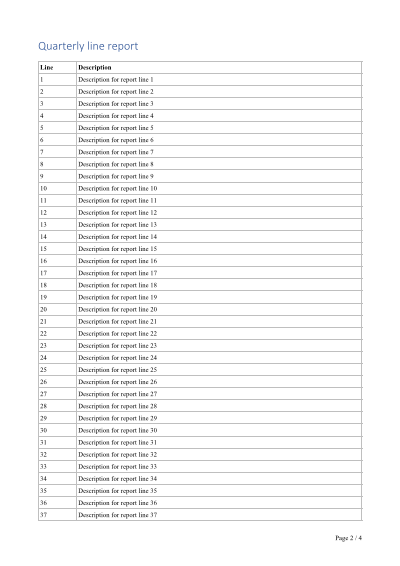 The merged report
destination.Merge(source, options)appends the source's sections. Every identifier that would collide is rewritten: styles, list definitions, bookmarks, notes, relationships and images. The source can be disposed immediately afterwards.MergeOptions.StyleConflictdecides what happens when both documents define a style with the same id.UseDestination(the default) formats the incoming content with the destination's style.KeepSourcerenames the incoming style so the merged content looks as it did.ImportHeadersAndFootersbrings the source's headers and footers along.document.Split(firstSectionIndex, sectionCount)returns a new document holding a copy of those sections, with their styles and resources.
Note
These combine Word documents before rendering. To combine existing PDF files, see Delete, extract, reorder, merge and split PDF pages.
Deleting a bookmark whose ends are in different paragraphs joins the two paragraphs, just as selecting across a paragraph break and pressing Delete does in Word.