Float, wrap, crop and describe a picture
A picture already in a document is floated or put back in line with SetImageLayout, cropped with SetImageCrop and described with SetImageAlternativeText: one undoable DocumentEdit each, as Word's Layout Options, Crop tool and Alt Text pane make.
The code
using DocWright.Core.Primitives;
using DocWright.Dom;
using DocWright.Dom.Editing;

ImageRef picture = first.Inlines.OfType<ImageRef>().Single();

// Out of the line of text: Word's defaults for a floating picture, then what this one wants.
ImageAnchor anchor = picture.Anchor?.Clone() ?? ImageEditingExtensions.NewFloatingAnchor();
anchor.Wrap = ImageWrapKind.Square;
anchor.WrapSide = "bothSides";
anchor.HorizontalRelativeTo = "margin";
anchor.HorizontalOffset = null;
anchor.HorizontalAlignment = "right";          // an alignment or an offset, not both
anchor.VerticalRelativeTo = "paragraph";
anchor.VerticalOffset = Emu.FromInches(0.1);
anchor.DistanceLeft = Emu.FromInches(0.2);
DocumentEdit floated = document.SetImageLayout(picture, anchor);
Console.WriteLine($"{picture.Placement}: wrap {picture.Anchor!.Wrap}, {picture.Anchor.HorizontalAlignment} of the {picture.Anchor.HorizontalRelativeTo}");

// Cut the right quarter of the source away; the picture keeps its scale, so it is a quarter narrower.
DocumentEdit crop = document.SetImageCrop(picture, left: 0, top: 0, right: 25000, bottom: 0);
Console.WriteLine($"cropped: {picture.Width.Value} x {picture.Height.Value} EMU, right crop {picture.CropRight}");

// What a screen reader says, and the title Word shows beside it.
DocumentEdit text = document.SetImageAlternativeText(picture, "A blue and white checked tile", title: "Tile");
Console.WriteLine($"alt text \"{picture.Description}\", title \"{picture.Title}\"");
Output
Anchored: wrap Square, right of the margin
cropped: 1371600 x 1371600 EMU, right crop 25000
alt text "A blue and white checked tile", title "Tile"
Inline, anchor none
after undo: Anchored
rotation 90 degrees, mirrored True; still 1371600 x 1371600 EMU
-90 degrees is 270
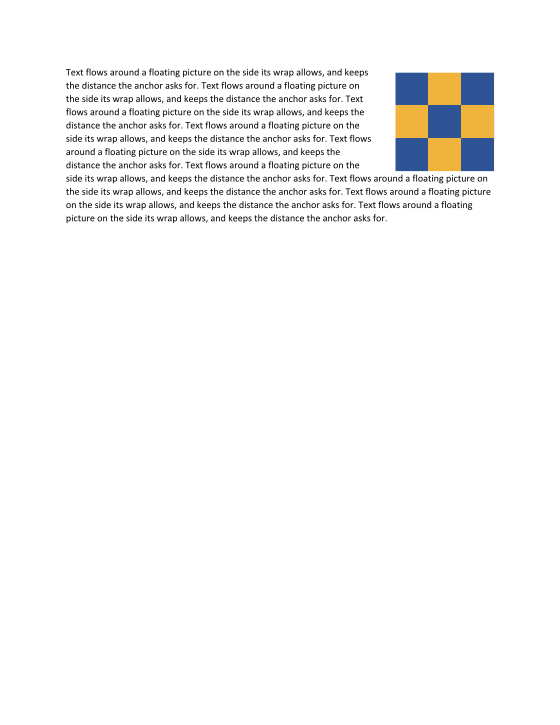
The anchor
SetImageLayout(picture, anchor) takes an ImageAnchor for a floating picture and null for one in line with text. ImageEditingExtensions.NewFloatingAnchor() is the anchor Word gives a picture it takes out of the line: in front of text, at the start of its column and paragraph, 0.125 in from text on the left and the right. The anchor is copied, so change a clone of picture.Anchor and pass it again for the next change.
| Property | Values |
|---|---|
Wrap |
None (in front of text; behind it with BehindText = true), Square, Tight, Through, TopAndBottom |
WrapSide |
bothSides, left, right, largest (square, tight and through) |
HorizontalRelativeTo |
margin, page, column, character, leftMargin, rightMargin, insideMargin, outsideMargin |
VerticalRelativeTo |
margin, page, paragraph, line, topMargin, bottomMargin, insideMargin, outsideMargin |
HorizontalOffset / VerticalOffset |
an Emu from the relative-to edge, negative allowed, at most 22 in either way |
HorizontalAlignment |
left, center, right, inside, outside (instead of an offset) |
VerticalAlignment |
top, center, bottom, inside, outside (instead of an offset) |
DistanceTop / Bottom / Left / Right |
the distance from text, zero to 22 in |
EffectLeft / Top / Right / Bottom |
how far the picture's effects (an outline, a shadow) reach past its box (wp:effectExtent); text wraps around the box with them, then the distance from text |
AllowOverlap, LayoutInCell, Locked |
Word's Layout dialog options; null is on, on and off |
RelativeHeight |
the order among floating objects; null keeps the picture's own, or goes above every other when it was in line |
A floating picture stays in its paragraph, which is what it is anchored to: MoveImage moves the anchor (Resize, move and copy a picture). When Word drags a floating picture, the anchor goes to the start of the paragraph at the picture's new top edge, and the vertical position keeps what it is relative to, measured from there; ReanchorImage(picture, paragraph, anchor) does that move and sets the position in one undoable edit (you work out the paragraph and the offset from your layout). A position or a wrap the new anchor leaves as the picture has it keeps its markup, so a percentage position and a wrap polygon edited in Word survive a change to something else.
In line again
using DocWright.Dom;
using DocWright.Dom.Editing;

// Back in line with text; then undo, and it floats again.
DocumentEdit inLine = document.SetImageLayout(picture, null);
Console.WriteLine($"{picture.Placement}, anchor {(picture.Anchor is null ? "none" : "kept")}");
inLine.Undo();
Console.WriteLine($"after undo: {picture.Placement}");
Crop and alternative text
| Edit | What changes | Refused when |
|---|---|---|
SetImageCrop(picture, left, top, right, bottom) |
the crops, in thousandths of a percent of the source (a:srcRect), and the size: the picture keeps its scale, as Word's Crop tool does, so cutting a quarter of the width makes it a quarter narrower. All zero restores the whole picture. ResizeImage afterwards gives it another size |
a crop below zero, or a pair that leaves nothing: ArgumentOutOfRangeException |
SetImageAlternativeText(picture, description, title) |
Description and Title, written as descr and title on the drawing and on the picture; null or empty removes one. The PDF renderer uses the description as the figure's alternate text |
a character XML cannot carry (a control character other than a tab or a line break): ArgumentException |
SetImageDecorative(picture, decorative) |
Word's Mark as decorative: its flag in both of the drawing's property elements, and the alternative text removed, so a screen reader skips the picture; false writes the flag at 0, as Word does. picture.IsImageDecorative() reads it, and Word reads DocWright's mark as its own |
All four refuse a drawing that is not one DrawingML picture (a VML picture, a group, a shape, a text box) with InvalidOperationException, and a token the format does not have, or a position with both an offset and an alignment, with ArgumentException.
Rotate and flip
SetImageRotation(picture, rotation, flipHorizontal, flipVertical) sets all three together, as Word's Rotate menu does. The rotation is in 60000ths of a degree, clockwise; the picture is mirrored first and then turned about its centre.
using DocWright.Dom;
using DocWright.Dom.Editing;

// A quarter turn to the right, mirrored left to right: 60000ths of a degree, clockwise.
const int Degree = 60000;
DocumentEdit turned = document.SetImageRotation(picture, 90 * Degree, flipHorizontal: true, flipVertical: false);
Console.WriteLine($"rotation {picture.Rotation / Degree} degrees, mirrored {picture.FlipHorizontal}; still {picture.Width.Value} x {picture.Height.Value} EMU");

// Any angle is the angle it is: a quarter turn to the left is 270 degrees.
document.SetImageRotation(picture, -90 * Degree, false, false);
Console.WriteLine($"-90 degrees is {picture.Rotation / Degree}");

// Any angle will do: thirty degrees leans the picture over the text beside it.
document.SetImageRotation(picture, 30 * Degree, false, false);
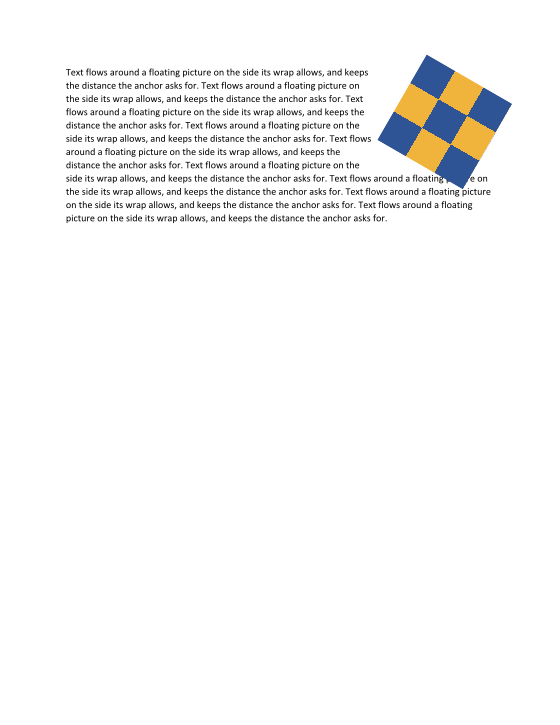
Width and Height stay the picture's own. The room it takes follows Word (WQ-0126): in line with text, the box is the picture's own turned by the nearest quarter turn, so from 45 up to 135 degrees (and 225 up to 315) the line is as tall as the picture is wide; floating, the position is the unrotated rectangle's and text wraps around the turned box. At other angles the box is the unrotated one and the turned corners overlap the text, as in Word.
What to know
- Setting
ImageRef.AnchororImageRef.CropLeftdirectly changes the layout but not the file: the DOCX writer writes a picture from its preserved drawing markup, which these edits rewrite. - Each edit's
ChangedParagraphKeysnames the picture's paragraph; aLayoutSessionre-lays out from there, text around a floating picture included. - A renderer of your own draws a rotated picture from
ImagePlacement:X,Y,WidthandHeightare the unrotated rectangle, andRotation,FlipHorizontalandFlipVerticalsay how to turn it about its centre (PlacementTurn.CosSingives the cosine and sine the built-in renderers use). - Text beside square-wrapped pictures and shapes is set as Word sets it (WQ-0161): each line is measured against every object its box reaches into, the gaps they leave are filled left to right with whole words, and a gap the next word does not fit stays empty, so one line can be several segments (several
LayoutLines at one top, the second and later withContinuesPreviousLine). - A rotated metafile picture (EMF, WMF) is drawn upright in its box, with a warning.