RTF and plain text
RTF
RTF is detected automatically (every RTF file starts with {\rtf), converts like any document, and saves with .rtf:
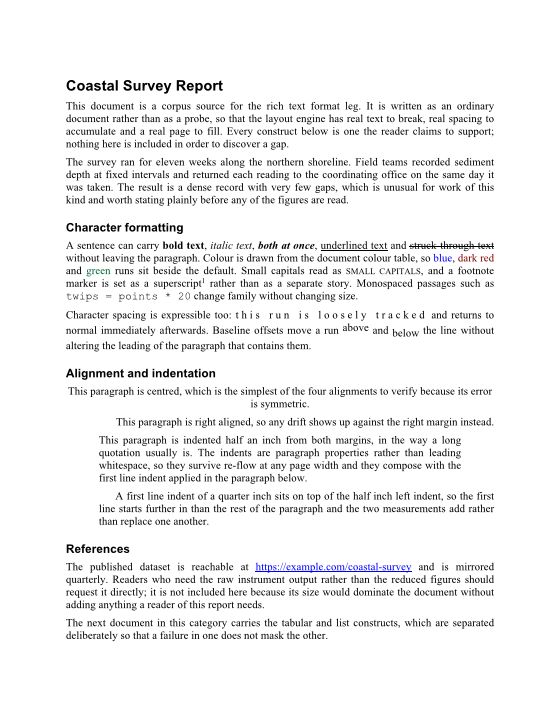
converter.Convert(input, output).No encoding setup is needed. RTF files name Windows code pages that .NET Core doesn't include by default. DocWright has the single-byte code pages (1250–1258, 874, 437, 850, Mac Roman and Mac Cyrillic) built in, so an RTF file decodes to the same text on every platform, with no CodePagesEncodingProvider to register.
- Import keeps paragraphs, character and paragraph formatting, fonts, colours, tables, sections, page setup, breaks, pictures and styles. Headers, footers, footnotes and embedded objects are reported rather than silently dropped.
- Export keeps paragraphs, runs, tables, sections, pictures and styles. List numbering is not written: a numbered paragraph keeps its text and indent but loses its number.
Plain text
Plain text is never detected automatically, because every byte sequence is valid text. A reader that accepted anything would turn a corrupt .docx into a page of garbage instead of an error. Ask for it: converter.Load(stream, FormatDetection.Text), or ConvertOptions.SourceFormat = FormatDetection.Text for Convert.
Reading
A text file can't say whether a line break ends a paragraph or just wraps, so you choose:
using DocWright.Core.Diagnostics;
using DocWright.Core.Formats;
using DocWright.Dom;
using DocWright.Formats.Text;

var reader = new PlainTextReader(new PlainTextReadOptions
{
    ParagraphMode = PlainTextParagraphMode.LinePerParagraph,   // or Reflow: blank lines separate paragraphs
    UseMonospaceFont = true,                                  // keep space-aligned layout legible
});

using (FileStream input = File.OpenRead("text-report.txt"))
using (var report = (WordDocument)reader.Read(input, new DocumentReadOptions(), NullConversionDiagnostics.Instance))
using (FileStream pdf = File.Create("text-report.pdf"))
{
    converter.Convert(report, pdf);
}
PlainTextReadOptions |
Default | Meaning |
|---|---|---|
ParagraphMode |
LinePerParagraph |
Reflow joins wrapped lines, and paragraphs are separated by blank lines. |
FormFeedIsPageBreak |
true |
U+000C starts a new page. |
UseMonospaceFont |
true |
Keeps space-aligned tables and diagrams legible. Turn it off for prose. |
Writing
using DocWright.Core.Diagnostics;
using DocWright.Core.Formats;
using DocWright.Dom;
using DocWright.Formats.Text;

// Plain text out, with tables aligned in columns.
using WordDocument table = converter.Load(File.OpenRead("table-styles.docx"));
var text = new PlainTextWriter(new PlainTextWriteOptions
{
    TableStyle = PlainTextTableStyle.Aligned,
    NewLine = "\n",
});

using (FileStream output = File.Create("table.txt"))
{
    text.Write(table, output, new DocumentWriteOptions(), NullConversionDiagnostics.Instance);
}
Output, table.txt:
DocWright seed document six: a table with conditional table-style formatting.
Product    Quantity  Status
Widgets    12        Shipped
Gadgets    7         Pending
Gizmos     31        Shipped
Sprockets  4         Backordered
A closing paragraph after the styled table.
PlainTextWriteOptions |
Default | Meaning |
|---|---|---|
TableStyle |
TabSeparated |
Aligned pads columns for a monospace font. Paragraphs writes one cell per line. Drop removes tables. |
AlignedColumnLimit |
40 | The widest an aligned column is padded to. Longer cells overflow; text is never cut. |
BreakStyle |
FormFeed |
How page and section breaks are written: BlankLine or None. |
IncludeHeadersAndFooters |
false |
A text file has no pages, so headers are off by default. |
IncludeNotes |
false |
Include footnotes and endnotes. |
NewLine |
"\r\n" |
Fixed, not the platform's, so output is the same everywhere. |
Encoding, WriteByteOrderMark |
UTF-8 |
Text → document → text is exact with the default options.