Page setup, panes and properties
Every member of XlsxDocumentSheet.PageSetup has a setter that writes the sheet as Excel writes it; FreezePanes and TabColor set the window; XlsxDocument.Properties sets what the workbook says about itself. Measured against Excel: it reports a workbook set up here exactly as it reports one set up in Excel itself.
dotnet add package DocWright.Spreadsheet
How a sheet prints
using DocWright.Spreadsheet;

XlsxDocumentPageSetup page = sheet.PageSetup;
page.PaperSize = 9;                                    // A4
page.Landscape = true;
page.FitToPage = true;
page.FitToWidth = 1;
page.FitToHeight = 0;                                  // one page wide, as many tall as it takes
page.CenterHorizontally = true;
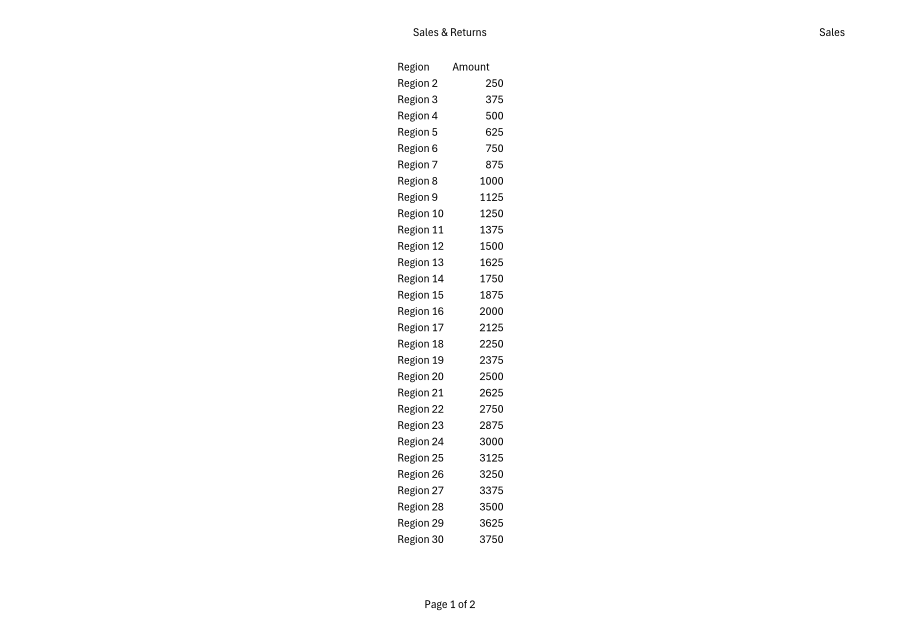
page.OddHeader = XlsxDocumentPageSetup.ComposeHeaderFooter(null, XlsxDocumentPageSetup.EscapeHeaderFooterText("Sales & Returns"), "&A");
page.OddFooter = XlsxDocumentPageSetup.ComposeHeaderFooter(null, "Page &P of &N", null);
page.SetPrintTitleRows(1, 1);                          // the header row on every page
page.RowBreaks = new[] { 30 };                         // a new page at row 31
Paper is Windows' paper number (1 Letter, 5 Legal, 8 A3, 9 A4). A header or footer is in Excel's notation: &L, &C and &R start its parts, &P is the page number, &N the page count, &A the sheet's name; ComposeHeaderFooter puts the parts together and EscapeHeaderFooterText keeps an & in plain text. Print titles and areas are written as Excel's own names; RowBreaks and ColumnBreaks are the rows and columns after which a page breaks. A value Excel would refuse is refused at the call.
Panes and the tab
using DocWright.Core.Primitives;
using DocWright.Spreadsheet;

sheet.FreezePanes(1, 1);                               // the first row and column stay
sheet.TabColor = ColorRgb.FromRgb(0x1F, 0x77, 0xB4);
FreezePanes(0, 0) unfreezes; TabColor = null takes the colour off.
Properties
using DocWright.Spreadsheet;

workbook.Properties.Title = "Quarterly sales";
workbook.Properties.Creator = "Finance";
workbook.Properties.SetCustom("Department", "Finance");
workbook.Properties.SetCustom("Revision", 7);
Nothing is stamped that you do not set: Created and Modified keep what the file says, and no author is filled in. A custom property is a string, an int, a double, a bool or a date.
The whole run prints:
A4 landscape True, fit 1x0, titles 1-1, break after row 30
frozen 1 row and 1 column; title 'Quarterly sales'; Department = Finance; Revision = 7
Download the workbook: sales-print.xlsx.