Sort, filter and group a sheet
Sort orders the rows of a range by one or more of its columns, exactly as Excel's Data > Sort does. SetAutoFilter and ApplyFilter put Excel's filter arrows on a range and hide the rows that do not pass. GroupRows and GroupColumns make Excel's outline. Each was measured against what Excel itself does to the same workbook.
dotnet add package DocWright.Spreadsheet
Sort a range
using DocWright.Spreadsheet;

var list = new XlsxCellRange(1, 1, 8, 4);   // A1:D8, its first row the header

// By priority in an order of your own, then by amount from the largest.
sheet.Sort(list, new XlsxSortOptions { HasHeader = true },
    new XlsxSortKey(4, new[] { "High", "Medium", "Low" }),
    new XlsxSortKey(3, descending: true));
Console.WriteLine("By priority: " + string.Join(", ", Enumerable.Range(2, 7).Select(r => sheet.GetCell(r, 1).DisplayText)));

// By name, as Excel orders text: case does not count, an accent comes after its letter,
// a hyphen counts last, and rows that are equal keep their order.
sheet.Sort(list, new XlsxSortOptions { HasHeader = true }, new XlsxSortKey(1));
Console.WriteLine("By name:     " + string.Join(", ", Enumerable.Range(2, 7).Select(r => sheet.GetCell(r, 1).DisplayText)));
A key names a column of the sheet (4 is D) inside the range; the first key decides first. A custom order puts its items first, matched without regard to case, then everything else in the ordinary order.
| Order | Numbers (dates among them) from the smallest, then text, then FALSE before TRUE, then errors. Empty cells come last whichever way the sort goes; descending is otherwise the exact reverse. |
| Text | As Excel orders it, not by character code: case does not count, an accented letter comes straight after its plain one, ß is ss and æ is ae, digits are characters ("10" before "2"), hyphens and apostrophes count only when all else is equal (Coop before co-op). Measured for every character of ASCII and Latin-1. |
| Ties | Rows whose keys are equal keep the order they had. |
| What moves | Each cell's value or formula, its format, its note and its hyperlink. Row heights, hidden rows, conditional formats and validations stay. |
| Formulas | A reference without a sheet name moves with its row, as a copied formula's does; one with a sheet name, even this sheet's, and a defined name stay as written. Formulas elsewhere that point into the range do not change. |
With CaseSensitive, lower case comes first:
using DocWright.Spreadsheet;

// Case-sensitive: lower case first.
sheet.Sort(list, new XlsxSortOptions { HasHeader = true, CaseSensitive = true }, new XlsxSortKey(1));
Console.WriteLine("Case counts: " + string.Join(", ", Enumerable.Range(2, 7).Select(r => sheet.GetCell(r, 1).DisplayText)));
Filter a list
using DocWright.Spreadsheet;

sheet.SetAutoFilter(list);
sheet.ApplyFilter(2, XlsxFilterCriterion.ValuesOf("East", "West"));
sheet.ApplyFilter(3, XlsxFilterCriterion.Custom(XlsxFilterOperator.GreaterThanOrEqual, "80"));
Console.WriteLine("Hidden rows: " + string.Join(", ", Enumerable.Range(2, 7).Where(sheet.IsRowHidden)));
foreach (XlsxColumnFilter filter in sheet.Filters)
{
    Console.WriteLine("Column " + filter.Column + " filters by " + filter.Criterion.Kind);
}
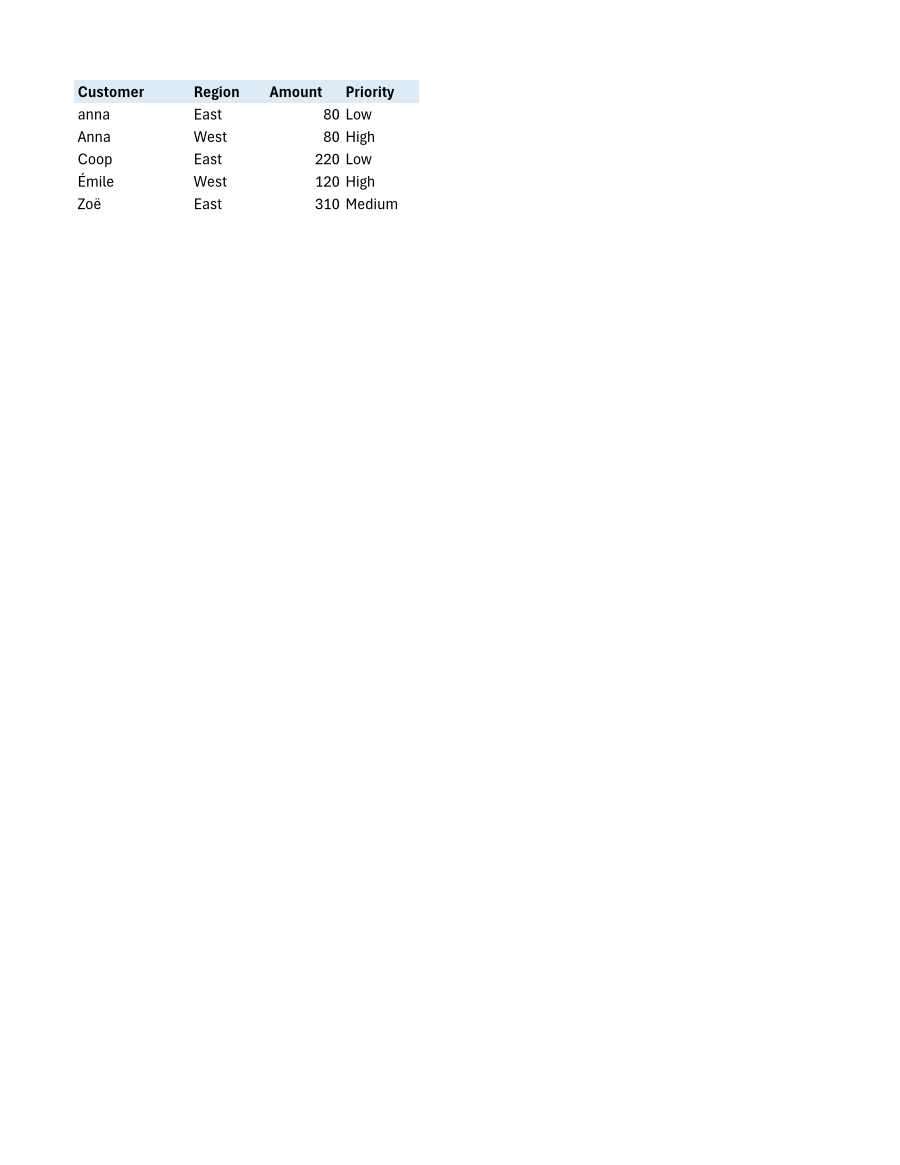
| Criterion | Lets through |
|---|---|
ValuesOf("East", "West") |
Cells that show one of the values, without regard to case; "5" lets through the number 5 and the text "5". |
Blanks(), NonBlanks() |
Empty cells; every cell that is not empty. |
Custom(op, value), Custom(first, matchAll, second) |
A number against a cell's number, text against its text in the sort's order; * and ? are wildcards for Equal and NotEqual. |
Top(n), Bottom(n), with percent: true |
The largest or smallest numbers of the column; a percent of their count, rounded down. |
AboveAverage(), BelowAverage() |
Numbers above or below the column's average. |
Each column's criterion is applied together: a row is shown when every column lets it through. AutoFilter and Filters read a filter back, one Excel wrote included; a filter by colour, icon or date period reads as XlsxFilterKind.Other and is kept as it is.
Note
Checked against Excel. Each criterion hides the rows Excel's own filter hides, and is written as Excel writes it. Excel opens the workbook showing exactly those rows: it does not filter again on open. Excel's filter decides every row of its range, so a row hidden by hand that passes is shown, and DocWright does the same.
using DocWright.Spreadsheet;

sheet.ClearFilters();                // every criterion off, every row shown; the arrows stay
Console.WriteLine("After ClearFilters: " + Enumerable.Range(2, 7).Count(sheet.IsRowHidden) + " hidden");
sheet.SetAutoFilter(null);           // the arrows go too
Group rows and columns
using DocWright.Spreadsheet;

sheet.SetValue("A9", XlsxCellValue.Text("Total"));
sheet.SetFormula("C9", "SUBTOTAL(9,C2:C8)");
sheet.GroupRows(2, 8);                     // level 1, its summary the total row below
sheet.GroupRows(3, 5, collapsed: true);    // nested inside it, hidden
Console.WriteLine("Levels: " + string.Join(" ", Enumerable.Range(1, 9).Select(sheet.GetRowOutlineLevel)) + "; row 4 hidden: " + sheet.IsRowHidden(4));

sheet.UngroupRows(3, 5);                   // one level up; Excel leaves the rows hidden, and so does this
Console.WriteLine("After UngroupRows: " + string.Join(" ", Enumerable.Range(1, 9).Select(sheet.GetRowOutlineLevel)) + "; row 4 hidden: " + sheet.IsRowHidden(4));
Each call puts the rows one outline level deeper, so a group inside another nests; seven levels at most, as in Excel. collapsed: true hides the rows and marks the summary row, the row below the group (or above it, with OutlineSummaryBelow = false). GroupColumns, UngroupColumns and OutlineSummaryRight do the same for columns, and SetRowHidden and SetColumnHidden hide and show by hand.
What is refused
using DocWright.Core;
using DocWright.Spreadsheet;

sheet.Merge(new XlsxCellRange(3, 4, 4, 4));
try
{
    sheet.Sort(list, new XlsxSortOptions { HasHeader = true }, new XlsxSortKey(3));
}
catch (UnsupportedFeatureException refused)
{
    Console.WriteLine(refused.Message);
}
| Call | Refused because |
|---|---|
| A sort across a merged range, or part of an array formula | Excel refuses it, with this message. |
| A sort across a table's header, or under a filter that hides rows | Sort the table's data rows; clear the filter first. |
ApplyFilter with no autofilter on the sheet |
Call SetAutoFilter first. |
| A group eight levels deep; an ungroup where nothing is grouped | Excel refuses both. |
The whole run prints:
By priority: Émile, Anna, Zoë, co-op, Coop, anna, Bob
By name:     Anna, anna, Bob, Coop, co-op, Émile, Zoë
Case counts: anna, Anna, Bob, co-op, Coop, Émile, Zoë
Hidden rows: 4, 5
Column 2 filters by Values
Column 3 filters by Custom
After ClearFilters: 0 hidden
Levels: 0 1 2 2 2 1 1 1 0; row 4 hidden: True
After UngroupRows: 0 1 1 1 1 1 1 1 0; row 4 hidden: True
The rows sorted cross the merged range D3:D4 on 'Orders'. Excel refuses it: "To do this, all the merged cells need to be the same size."
Sorting and filtering by colour or icon, an advanced filter to another range and subtotals are not done.