Tutorial: Design and test rules in the visual builder
The RuleWright rule builder is a web page where you design a rule by wiring nodes on a canvas. It runs the real RuleWright engine, compiled to WebAssembly, so when it tests or validates a rule you get the same result your application will. This tutorial takes one of the example documents, changes it, tests it against two facts, catches a mistake and exports the JSON.
You will learn to:
- read a rule document as a graph, and edit it node by node
- test a rule against a fact and read the trace to see why it fired or didn't
- validate a draft and export the JSON your application loads
- see how a decision table runs as a set of rules
Open the builder in another tab and follow along.
Step 1: Load an example
Pick 01-quickstart-single-rule.json from the Load example… list. The list holds the same 21 documents as Example documents.
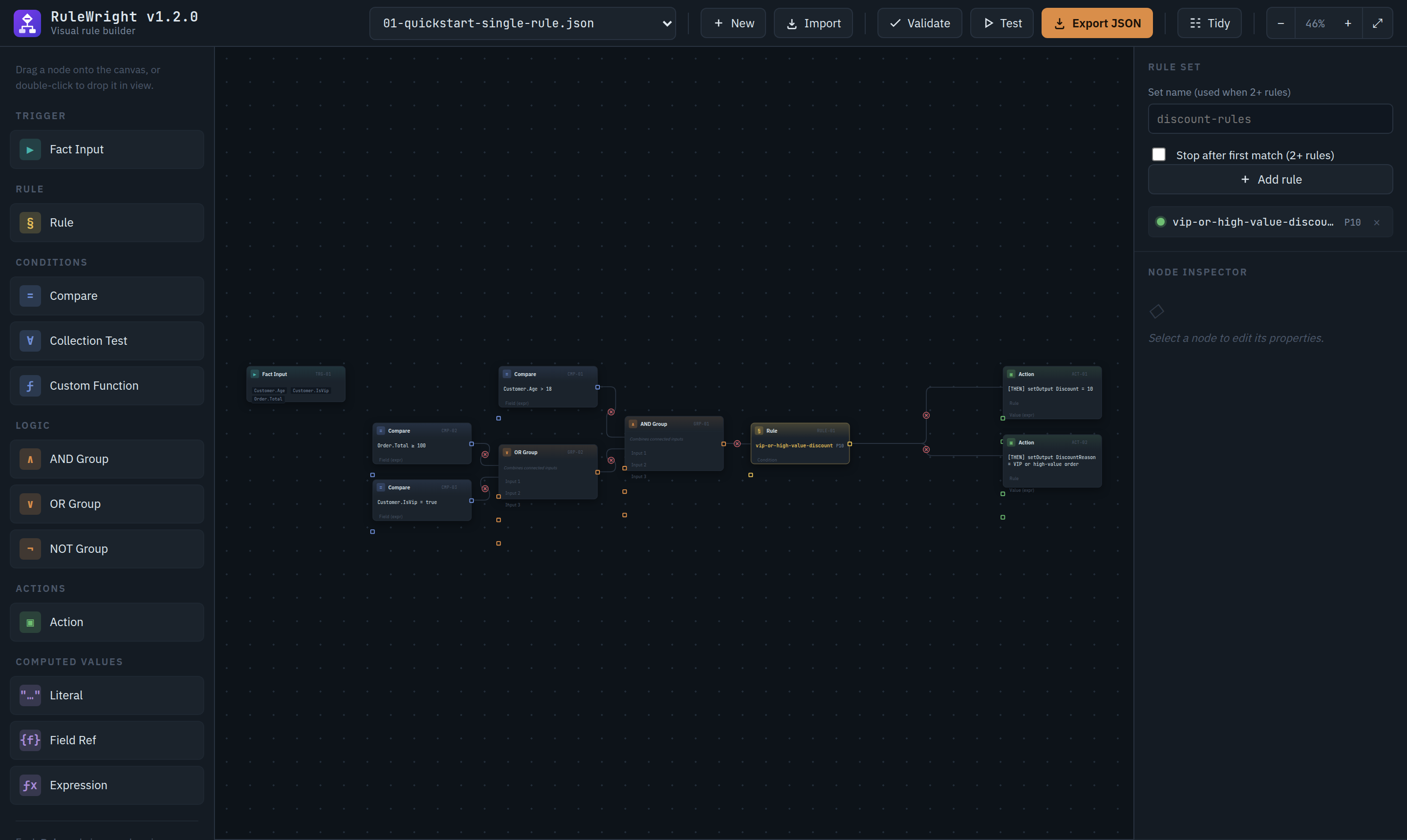
The graph is the rule document, read from left to right:
| On the canvas | In the JSON |
|---|---|
Compare nodes: Customer.Age > 18, Order.Total ≥ 100, Customer.IsVip = true |
Conditions: { "field", "operator", "value" } |
| OR Group and AND Group nodes | { "type": "group", "operator": "OR" } and "AND", with the wired nodes as its rules |
The Rule node, vip-or-high-value-discount, P10 |
The rule's id and priority. The node wired into its Condition pin is the rule's condition |
| The two Action nodes | actions: setOutput Discount = 10 and setOutput DiscountReason |
So the rule reads: customers over 18 who either spend at least 100 or are a VIP get 10% off. You design a new rule the same way. Drag nodes from the palette, or double-click one, then wire each output pin to the next node's input.
Step 2: Edit a node
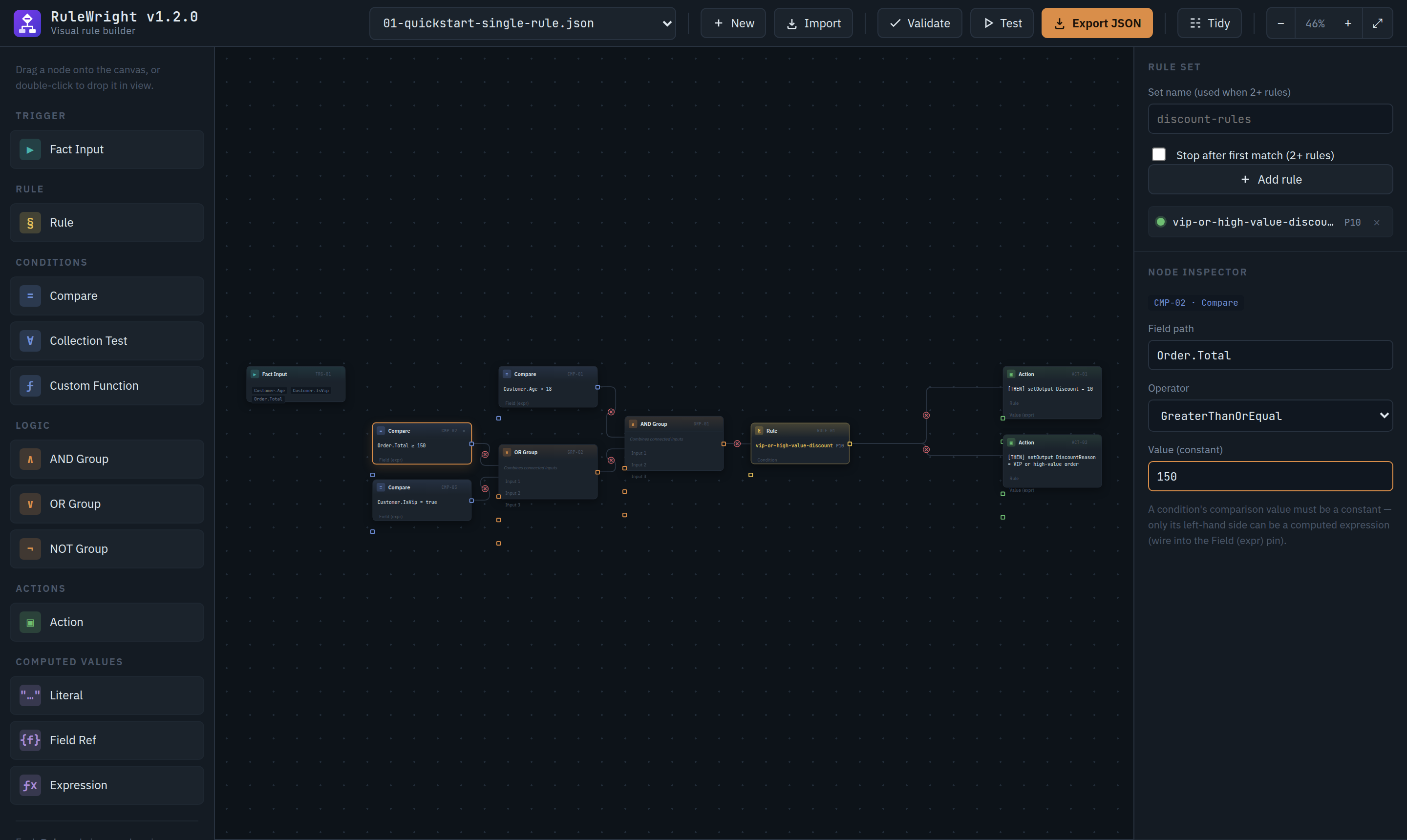
Click the Order.Total ≥ 100 node. The Node inspector shows its field path, operator and value. Change Value (constant) to 150. The node updates as you type.
Step 3: Test it against a fact
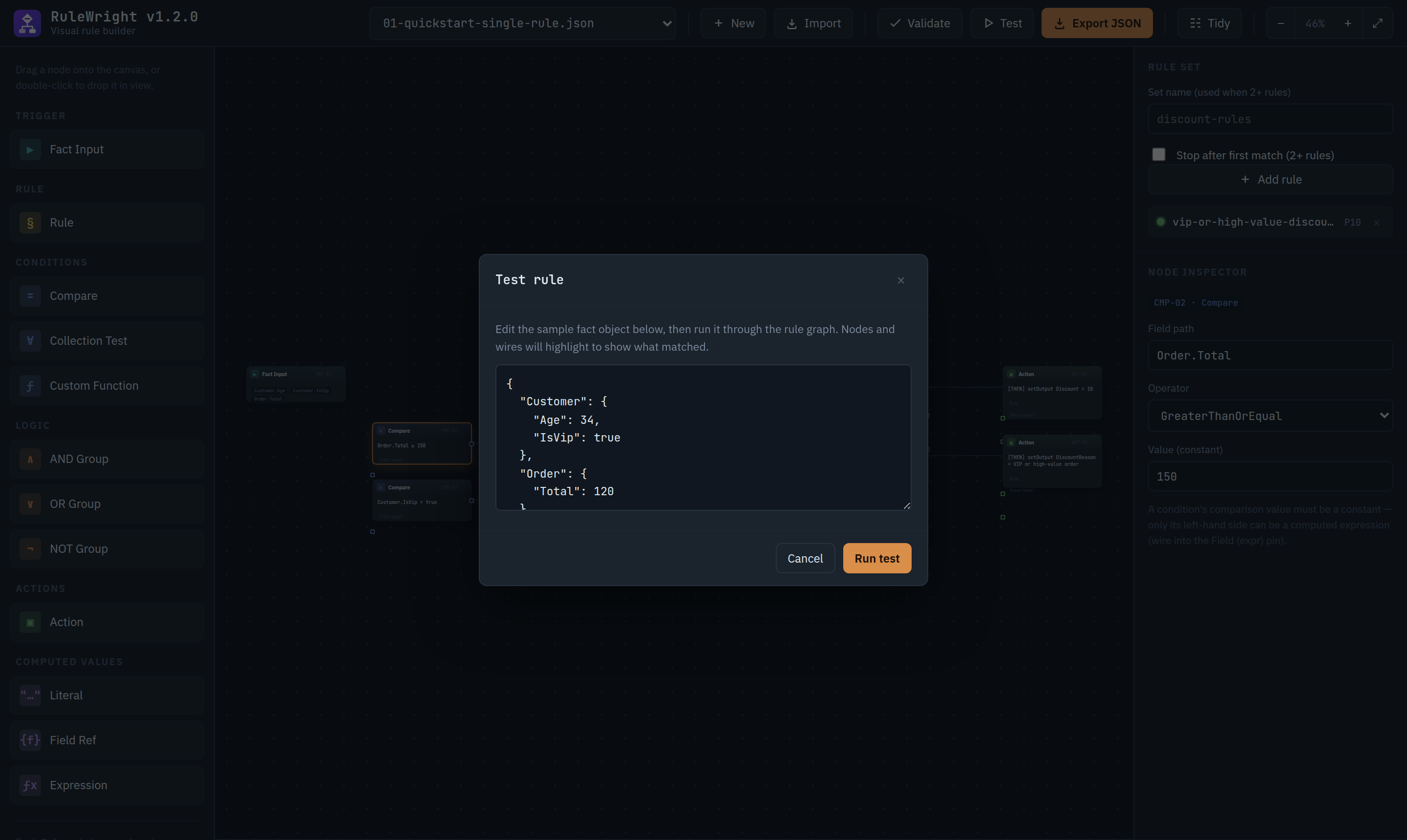
Click Test. The builder opens a sample fact: a 34-year-old VIP with a 120 order. Edit it here to try any case. Its paths match the rule's field paths (Customer.Age, Order.Total).
Click Run test. The engine evaluates the rule, the canvas highlights the path the evaluation took, and the Trace tab explains each condition:
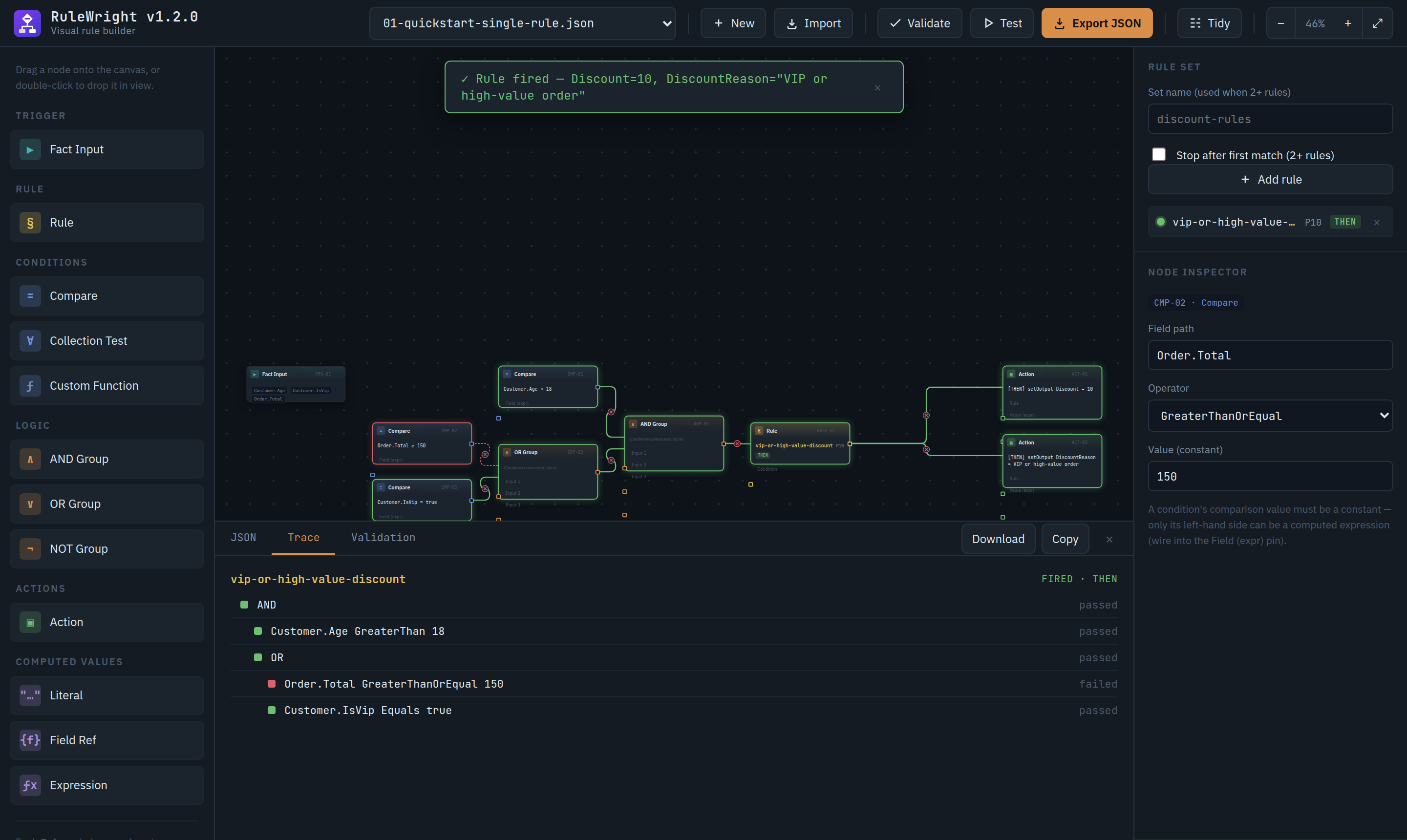
OR still passes.The banner shows the outputs the rule wrote, the same values result.Outputs holds in your application. The trace is the one tracing records.
Step 4: Test the case that shouldn't match
A test that only ever passes proves little. Run the test again with "IsVip": false, keeping the order at 120:
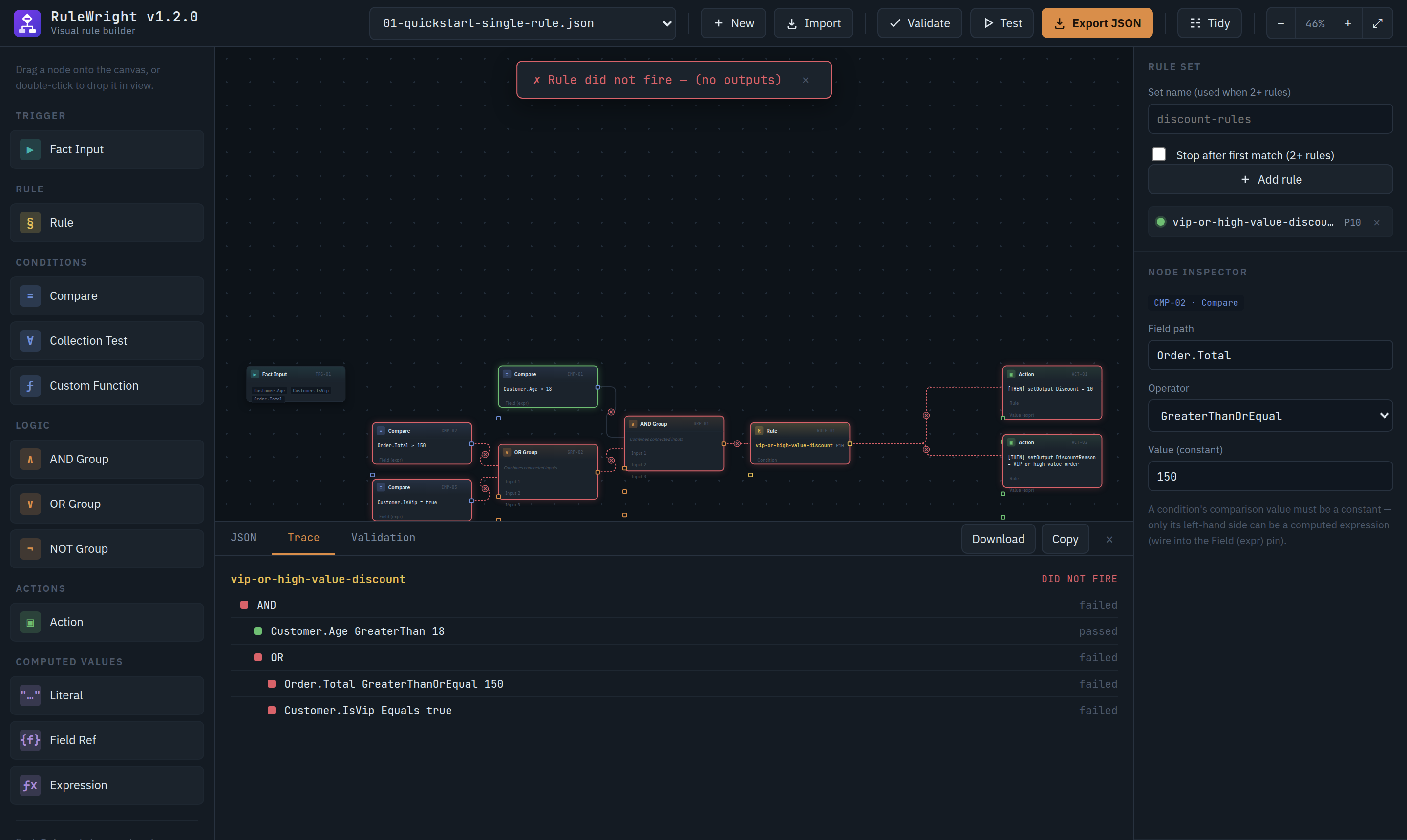
Try the boundary too: with "Total": 150 the rule fires again, because the operator is GreaterThanOrEqual. Every threshold deserves a case on each side of it. Test your rule documents turns cases like these into tests that run in CI.
Step 5: Validate
Mistakes happen while you edit. To see what validation reports, clear the Field path of the Customer.Age > 18 node and click Validate:
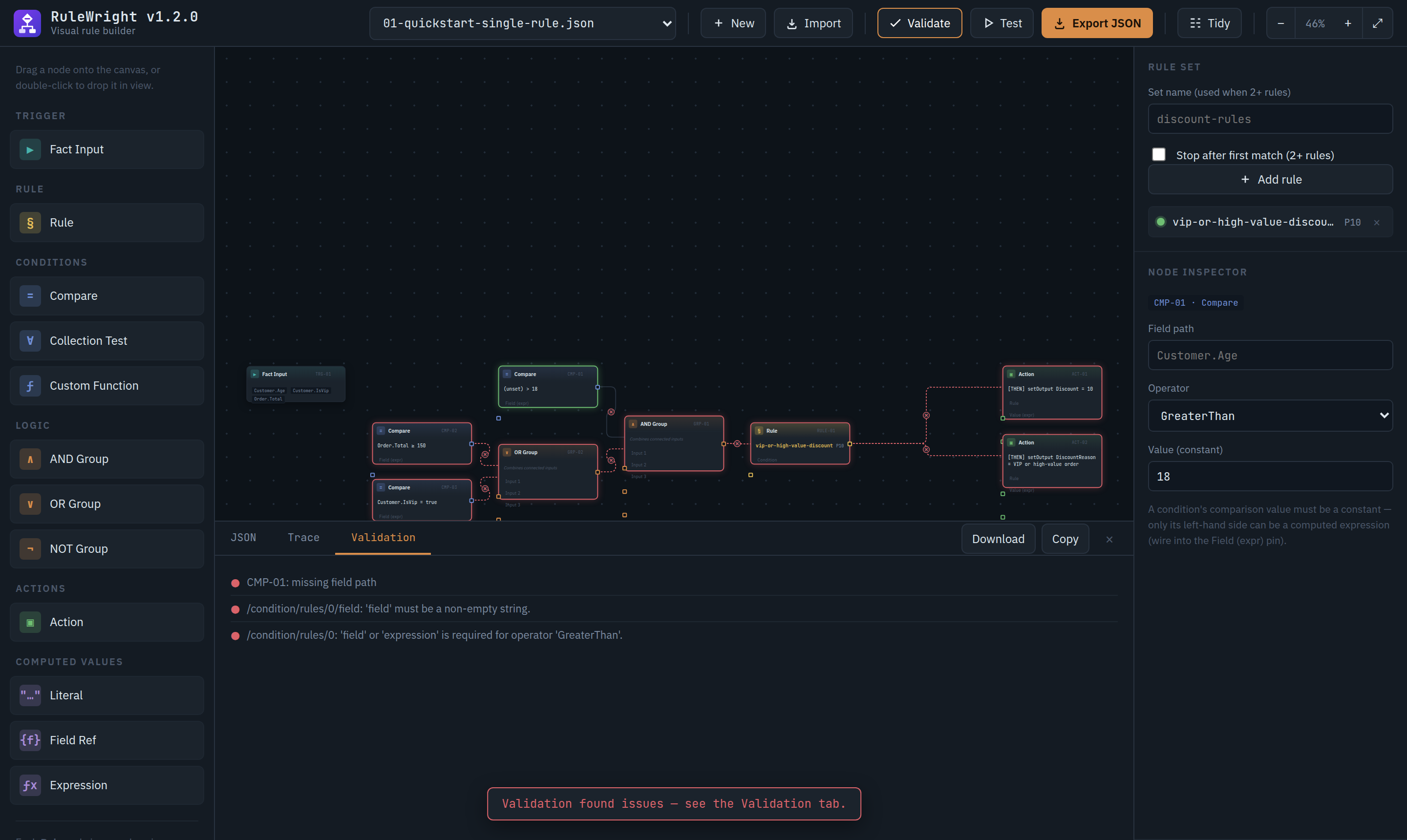
The engine's messages are the ones engine.Validate(json) returns in your application, so a document that validates here validates there too. See Validate documents. Put the field path back to Customer.Age before you continue.
Step 6: Export the JSON
Click Export JSON. The JSON tab shows the document the canvas describes. Download saves it as a file and Copy puts it on the clipboard.
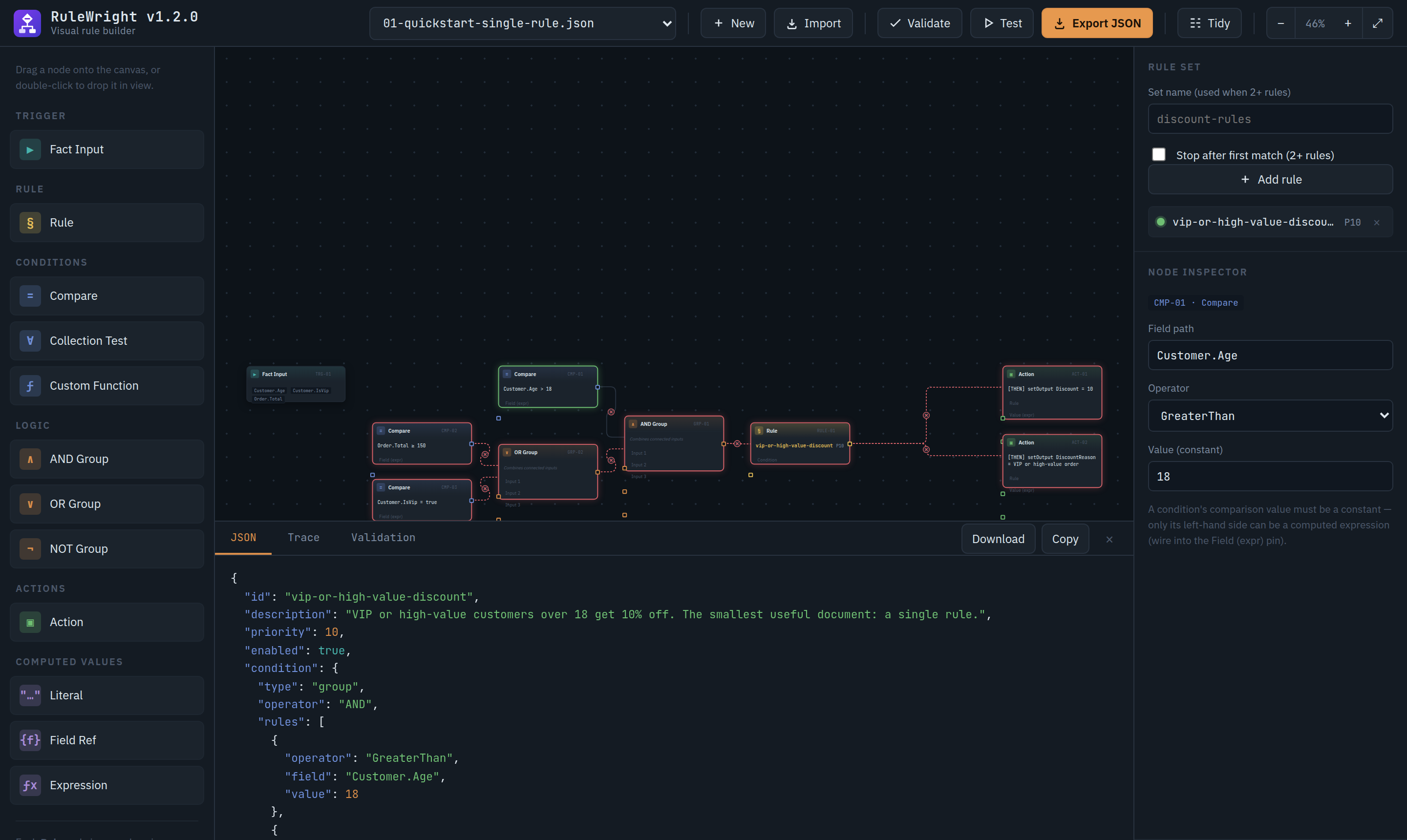
engine.LoadRuleSet, as in Your first rule, or serve it from a service, as in Host rules behind a web API.To edit a document you already have, click Import and paste it. A single rule, a rule set and a decision table all rebuild on the canvas.
Step 7: Rule sets and decision tables
Load 10-decision-table-first.json. It is a shipping-cost table with hitPolicy: "first": it tries its rows top to bottom, and only the first row that matches applies. The builder expands the table into the rules the engine runs, one per row. Stop after first match is ticked, because that is what first means for the expanded set. Run a test with the default fact:
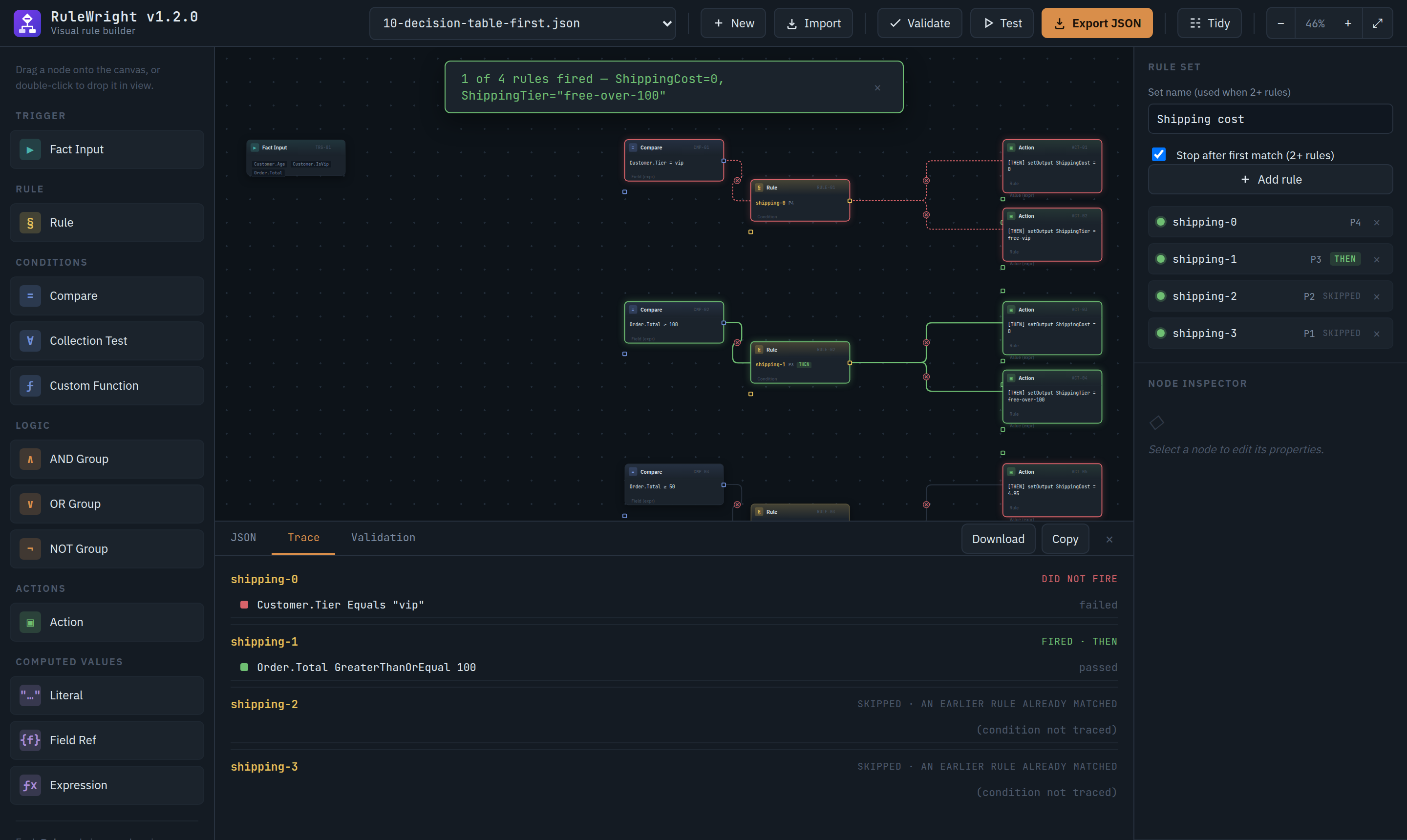
Tier, so the VIP row fails. The 120 order matches the second row, and the last two rows are skipped, not evaluated.Each rule's status in the rule-set panel on the right (THEN, SKIPPED) and its line in the trace tell you exactly which row decided the result. Decision tables covers the hit policies, and Rule sets covers priority and stopping.
Where the builder comes from
The builder is a sample in the RuleWright repository, samples/RuleWright.Sample.BlazorBuilder. It's a Blazor WebAssembly app that calls the engine for Test and Validate, and it's redeployed whenever the sample changes. It is also a complete example of an editor built on RuleWright's closed vocabulary. Serve the vocabulary to an editor explains how to build your own.
The builder stores each node's position in the rule's layout key. The engine ignores that key and leaves it out of the content hash, so moving a node never changes how the rule runs.
Next steps
- Test your rule documents: keep the cases you tried here as tests.
- Conditions: every operator the Compare node offers.
- Computed values: what the Expression, Field Ref and Literal nodes build.