Tutorial: Assemble a board pack
Turn four Word papers and a cover sheet into one board pack. Convert each paper to PDF, merge everything in agenda order, pull out a section for a committee, split and reorder pages, and render a thumbnail of every page. Pages move between PDFs whole: nothing is rasterized or re-encoded.
You will learn to:
- convert several documents with one converter
- merge, extract, split and reorder pages of existing PDFs with
PdfPages - render the pages of any PDF, including ones DocWright did not create, to PNG
Everything here is in the main DocWright package. The page tools live in the DocWright.Formats.Pdf namespace.
Step 1: Convert the papers
The papers are ordinary Word documents: a letter, a three-page report, a paper with charts, and a table. The cover sheet is already a PDF.
using DocWright;
using DocWright.Core.Primitives;
using DocWright.Formats.Pdf;
using DocWright.Renderers.Imaging;

// 1. Convert each Word paper to PDF. One converter for all of them.
var converter = new DocWrightConverter();
string[] papers = ["letterhead.docx", "quarterly-report.docx", "charts.docx", "table-styles.docx"];

foreach (string paper in papers)
{
    using FileStream input = File.OpenRead(paper);
    using FileStream output = File.Create(Path.ChangeExtension(paper, ".pdf"));
    converter.Convert(input, output);
}
Step 2: Merge, extract, split and reorder
using DocWright;
using DocWright.Core.Primitives;
using DocWright.Formats.Pdf;
using DocWright.Renderers.Imaging;

// 2. Merge: the cover first, then every paper in agenda order.
PdfAssemblyResult pack = PdfPages.Merge(
    ["cover.pdf", "letterhead.pdf", "quarterly-report.pdf", "charts.pdf", "table-styles.pdf"],
    "board-pack.pdf");
Console.WriteLine($"board-pack.pdf: {pack.PageCount} pages from {pack.SourceCount} files");

// 3. Pull out the financial report (pages 3-5) for the audit committee.
PdfPages.Extract("board-pack.pdf", PageRange.Parse("3-5"), "audit-committee.pdf");

// 4. Split the pack in two: the cover and letter, and the papers.
PdfPages.Split(
    "board-pack.pdf",
    [PageRange.Parse("1-2"), PageRange.Parse("3-")],
    ["pack-part-1.pdf", "pack-part-2.pdf"]);

// 5. Put the two chart pages first, keeping every other page in order.
//    A reorder must name every page exactly once.
int pages = pack.PageCount;
int[] order = [6, 7, .. Enumerable.Range(1, pages).Where(p => p is not (6 or 7))];
PdfPages.Reorder("board-pack.pdf", order, "board-pack-charts-first.pdf");
Output
board-pack.pdf: 8 pages from 5 files
custom-pack.pdf: 5 pages
  outline entries removed: 0, link targets removed: 0, form dropped: False, other entries: [Info]
| Method | What it produces |
|---|---|
PdfPages.Merge(sources, output) |
All pages of every source, in the order given. |
PdfPages.Extract(source, pages, output) |
Only the pages you name. |
PdfPages.Delete(source, pages, output) |
Every page except the ones you name. |
PdfPages.Split(source, parts, outputs) |
One file per PageRange part. |
PdfPages.Reorder(source, order, output) |
Every page in a new order. The order must name each page exactly once. |
Delete, Extract and Reorder also have …InPlace forms that replace the source file safely: the new file is written beside it and swapped in only when the write succeeded. Every method has overloads that take byte[] and Stream instead of paths.
Warning
A PageRange is a set, not a sequence. "5,1" and "1,5" select the same pages, in ascending order. When order matters, use Reorder, or PdfPageAssembly.AppendPage (below).
Step 3: Render page thumbnails
ConvertPdfToImages renders any PDF, not only one DocWright wrote. It takes the same ImageRenderOptions as Word documents:
using DocWright;
using DocWright.Core.Primitives;
using DocWright.Formats.Pdf;
using DocWright.Renderers.Imaging;

// 6. Render a thumbnail of every page of the finished pack.
var thumbnails = new ImageRenderOptions
{
    Width = 160,
    PageEncoded = (page, png) => File.WriteAllBytes($"pack-page-{page}.png", png),
};

using (FileStream packFile = File.OpenRead("board-pack.pdf"))
{
    converter.ConvertPdfToImages(packFile, thumbnails);
}
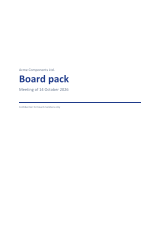 1 · Cover
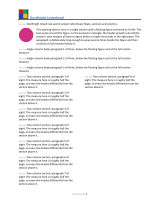 2 · Letter
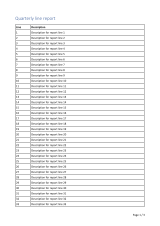 3 · Report
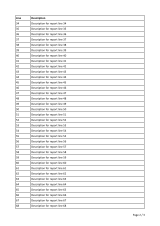 4 · Report
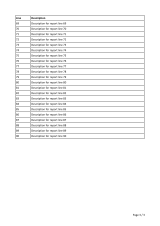 5 · Report
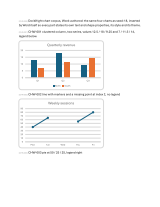 6 · Charts
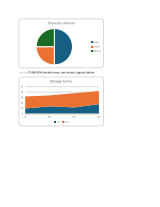 7 · Charts
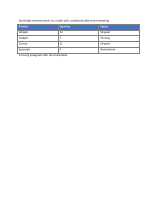 8 · Table
ConvertPdfToImages. Download: board-pack.pdf.Beyond the five methods: PdfPageAssembly
PdfPages is a convenience layer over PdfPageAssembly. Use the engine directly to interleave pages from several sources, repeat a page, or open password-protected sources:
using DocWright;
using DocWright.Core.Primitives;
using DocWright.Formats.Pdf;
using DocWright.Renderers.Imaging;

using (var assembly = new PdfPageAssembly())
{
    int cover = assembly.AddSource("cover.pdf");
    int report = assembly.AddSource("quarterly-report.pdf");   // or (path, password: "…")

    assembly
        .AppendAll(cover)                                   // every page of the cover
        .AppendRange(report, PageRange.Parse("2-"))         // the report from page 2 on
        .AppendPage(report, 1)                              // then its first page, moved to the end
        .AppendPage(cover, 1);                              // and the cover again as a back page

    PdfAssemblyResult result = assembly.Save("custom-pack.pdf");
    Console.WriteLine($"custom-pack.pdf: {result.PageCount} pages");
    if (result.HasLosses)
    {
        Console.WriteLine($"  outline entries removed: {result.RemovedOutlineEntryCount}, " +
                          $"link targets removed: {result.RemovedDestinationCount}, " +
                          $"form dropped: {result.FormDropped}, " +
                          $"other entries: [{string.Join(", ", result.DroppedDocumentEntries)}]");
    }
}
A repeated page shares one copy of its content, so duplicating a page costs almost nothing. PdfPageAssembly holds its sources open: dispose it, and use one instance per thread.
What you are told about
The custom pack above reports one loss, visible in the output: Info.
PdfAssemblyResult reports what the operation had to change. Check HasLosses before relying on the output:
| Property | Meaning |
|---|---|
PageCount, SourceCount, BytesWritten |
What was written. |
RemovedOutlineEntryCount, RemovedDestinationCount |
Bookmarks and link targets that pointed at pages left out. Links between pages that were kept are repaired. |
FormDropped |
An interactive form was not carried over. |
EncryptionRemoved |
A source was encrypted. The output is not encrypted. |
DroppedDocumentEntries |
Document-level entries that could not be carried. The most common one is Info, the title and author metadata. When more than one source has it there is no right answer, so none is kept, and the output has no title. |
HasLosses |
Any of the above happened. |
Note
Don't confuse these with WordDocument.Merge and WordDocument.Split. Those combine and divide Word documents in the editable model before rendering. PdfPages works on PDF files that already exist.
Next steps
- Delete, extract, reorder, merge and split PDF pages: the full reference, including what is carried over and what is reported.
- Guides › Reading and rendering PDFs: passwords, damaged files, and what the PDF renderer supports.
- Build a document-conversion API to offer all of this over HTTP.