Export a report to Word, Excel, CSV and text
The DocWright.Reporting.Export package writes a paginated report to four formats. All of them start from the same ReportPageModel that PDF and PNG are drawn from, so run and paginate once, then export as many times as you like.
<PackageReference Include="DocWright.Reporting.Export" Version="1.*" />
This guide continues from Paginate and render a report and uses the same sales.rdl.
All four formats
using DocWright.Reporting.Export;

// One page model, four formats.
using (FileStream docx = File.Create("sales.docx"))
{
    ReportDocxExporter.Export(pages, fonts, docx);
}

using (FileStream xlsx = File.Create("sales.xlsx"))
{
    ReportXlsxExporter.Export(pages, fonts, xlsx);
}

File.WriteAllText("sales.csv", ReportCsvExporter.ToCsv(pages));   // see the known issue below
File.WriteAllText("sales.txt", ReportTextExporter.ToText(pages));
Downloads: sales.docx, sales.xlsx.
Output (all output from this page's samples):
flow export: 2 section(s), 0 diagnostic(s)
CSV:
  Region;Store;Amount
  South;20 stores;42,050
  ;South store 01;1,850
  ;South store 02;500
Text:
  Sales: All regions
  Region | Store | Amount
  Central | 20 stores | 43,300
  Central store 01 | 500
  Central store 02 | 2,600
1 sheet "Report", 67 rows
  level 0: Sales: All regions
  level 0: Region | Store | Amount
  level 0: Central | 20 stores | 43300 (number)
  level 1:  | Central store 01 | 500 (number)
  level 1:  | Central store 02 | 2600 (number)
per page: 2 sheets
Each exporter has an Export(pages, …, stream, options) method. CSV and text also have ToCsv and ToText, which return a string. Word and Excel also have ToDocument and ToWorkbook, which return the model so you can change it before saving.
Word
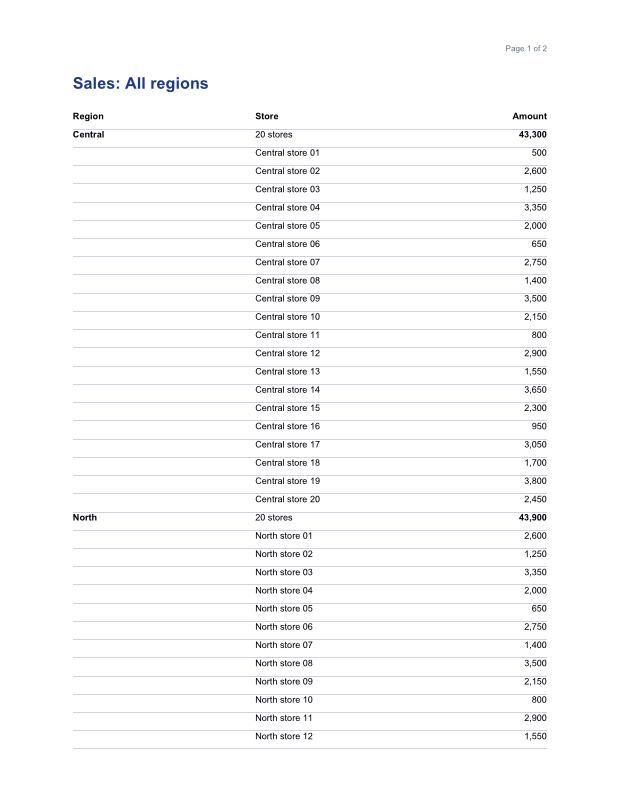
The default, ReportDocxLayout.Fixed, reproduces each printed page as a grid. Each report page becomes a Word section of the same size, holding a borderless table whose rows and columns come from the positions of the items on the page. This is the same approach as Reporting Services' own Word export, and it's how an absolutely positioned report survives in a format that has no absolute positioning.
- Each textbox is written as the lines the paginator laid out, one paragraph per line, so Word breaks lines where the PDF does.
- Charts, gauges and barcodes become pictures, drawn by the same renderer as a PNG of the page (
RasterDpi, 150 by default). - Row heights are "at least", not exact, so nothing is ever clipped.
- Page headers and footers are written as ordinary content on each page, not as Word headers, because a report's header can be different on every page ("Page 3 of 9").
ReportDocxLayout.Flow writes the text as ordinary flowing paragraphs, for a report someone will rewrite rather than print:
using DocWright;
using DocWright.Core.Diagnostics;
using DocWright.Dom;
using DocWright.Reporting.Export;

// Flow layout: plain paragraphs and tables for a document someone will edit,
// instead of the default fixed grid that reproduces the printed page.
var diagnostics = new CollectingConversionDiagnostics();
var flow = new ReportDocxExportOptions
{
    Layout = ReportDocxLayout.Flow,
    IncludePageHeadersAndFooters = false,
    Diagnostics = diagnostics,
};

// ToDocument returns the WordDocument, so you can edit it before saving.
using WordDocument document = ReportDocxExporter.ToDocument(pages, fonts, flow);
document.Sections[0].Blocks.Insert(0, new Paragraph("Exported for the October board meeting."));
using (FileStream output = File.Create("sales-flow.docx"))
{
    new DocWrightConverter().Save(document, output);
}

Console.WriteLine($"flow export: {document.Sections.Count} section(s), {diagnostics.Snapshot().Count} diagnostic(s)");
ReportDocxExportOptions |
Default | |
|---|---|---|
Layout |
Fixed |
Fixed reproduces the printed page. Flow gives editable paragraphs. |
RasterDpi |
150 | Resolution of charts, gauges and custom items, from 32 to 600. |
IncludePageHeadersAndFooters |
true |
|
IncludeImages |
true |
|
Diagnostics, StrictMode |
— | Report what couldn't be carried, or throw instead. A diagonal line, for example, is DXP9502. |
CSV
using DocWright.Reporting.Expressions;
using DocWright.Reporting.Export;
using DocWright.Reporting.Pagination;
using DocWright.Reporting.Processing;

// One region fits on one page. (See the known issue below about multi-page CSV.)
var south = new ReportRunOptions { ExecutionTime = run.ExecutionTime };
south.Parameters["Region"] = new ReportParameterValue("South");
using ReportInstance southInstance = ReportProcessor.Process(definition, SalesData.Provider(), south);
ReportPageModel southPages = ReportPaginator.Paginate(southInstance, fonts);

string csv = ReportCsvExporter.ToCsv(southPages, new ReportCsvExportOptions
{
    FieldDelimiter = ";",
    IncludeItemsOutsideDataRegions = false,   // true adds titles and other free-standing text
});
Console.WriteLine("CSV:");
foreach (string line in csv.Split((char)10).Take(4))
{
    Console.WriteLine("  " + line.TrimEnd((char)13));
}
CSV contains the data, not the page. Each table becomes a block of records whose columns are the table's columns. A row split by a page break, or a header repeated on a later page, is supposed to be written only once. Page headers and footers are never written. Quoting follows RFC 4180. A byte-order mark is written by default, because spreadsheet programs often misread UTF-8 without one.
ReportCsvExportOptions |
Default |
|---|---|
FieldDelimiter, RecordDelimiter, Qualifier |
, · \r\n · " |
IncludeItemsOutsideDataRegions |
false. Set it to true to include titles and other text outside tables. |
WriteByteOrderMark |
true |
Warning
Known issue: CSV export of a report that runs to more than one page currently mixes up the rows. Records from later pages are merged into the records of the first page. A report that fits on one page exports correctly, as in the sample above, which filters to one region. Until this is fixed, check multi-page CSV output, or export to Excel instead.
Plain text
using DocWright.Reporting.Export;

string text = ReportTextExporter.ToText(pages, new ReportTextExportOptions
{
    IncludePageHeadersAndFooters = false,
    LineEnding = "\n",
    ColumnSeparator = " | ",
    PageSeparator = "\n----\n",
});
Console.WriteLine("Text:");
foreach (string line in text.Split('\n').Take(5))
{
    Console.WriteLine("  " + line);
}
The text of every textbox in reading order, one block per page. Text in the same horizontal band, such as a table row, goes on one line, separated by ColumnSeparator. Line endings and separators are always the ones you set, never the machine's, so the same report gives the same bytes everywhere. Unlike CSV, page headers and footers are included by default.
Excel
using DocWright.Fonts;
using DocWright.Formats.Xlsx;
using DocWright.Reporting.Export;

// ToWorkbook returns the workbook model: inspect it, add to it, then write it.
XlsxWorkbook book = ReportXlsxExporter.ToWorkbook(pages, fonts);
XlsxWorksheet sheet = book.Worksheets[0];
Console.WriteLine($"{book.Worksheets.Count} sheet \"{sheet.Name}\", {sheet.Rows.Count} rows");

// Numbers stay numbers, so the column sums. Toggles become the row outline.
foreach (XlsxRow row in sheet.Rows.Take(5))
{
    string cells = string.Join(" | ", row.Cells.Select(c =>
        c.Value.Kind == XlsxCellValueKind.Number ? $"{c.Value.NumberValue} (number)" : c.Value.TextValue));
    Console.WriteLine($"  level {row.OutlineLevel}: {cells}");
}

var notes = new XlsxWorksheet("Notes");
var first = new XlsxRow(1);
first.Cells.Add(new XlsxCell(1, XlsxCellValue.Text("Exported from sales.rdl")));
notes.Rows.Add(first);
book.Worksheets.Add(notes);
using (FileStream output = File.Create("sales-with-notes.xlsx"))
{
    XlsxWriter.Write(book, output);
}

// One sheet per page instead of one for the whole report.
XlsxWorkbook perPage = ReportXlsxExporter.ToWorkbook(pages, fonts, new ReportXlsxExportOptions
{
    Sheets = ReportXlsxSheets.PerPage,
    ShowGridLines = true,
});
Console.WriteLine($"per page: {perPage.Worksheets.Count} sheets");
- Numbers stay numbers. A textbox whose value is a number becomes a numeric cell, with the report's format converted to an Excel number format. It looks the same as in the report, and the column can be summed. A format with no Excel equivalent is dropped, leaving the plain number, and reported as
DXP9502. Showing a different number would be worse. - One sheet for the whole report by default, as Reporting Services does.
ReportXlsxSheets.PerPagegives one sheet per page instead, named from the page name if the report sets one. - The grid is rebuilt from positions. Rows are the horizontal bands that items fall into, and columns are the distinct left and right edges of the items, so no cell holds two items.
- Drill-down toggles become Excel's row outline (the level shown in the output), with summary rows above their details. Groups without a toggle don't add outline levels. Excel allows seven levels.
- Page headers and footers are left out by default, unlike Reporting Services, because a header repeated on every page would become a band of text through the middle of the data. Set
IncludePageHeadersAndFootersto include them. - Charts, gauges and barcodes are anchored pictures (
RasterDpi, 96 by default). Grid lines are hidden unlessShowGridLinesis set.
ToWorkbook returns an XlsxWorkbook, the model used by DocWright.Formats.Xlsx. Add sheets, change widths or freeze panes, then write it with XlsxWriter.Write.
Known issues
- Multi-page CSV mixes rows from different pages together, as described above.
- Cell shading in the Word export is written without a shading pattern, so shaded table headers and group rows can appear white. The Excel and PDF output keep the shading.
Next steps
- Write Excel files for the workbook model.
- Run an SSRS report and export it: Microsoft's Regional Sales report from start to finish.