Tutorial: Run an SSRS report and export it
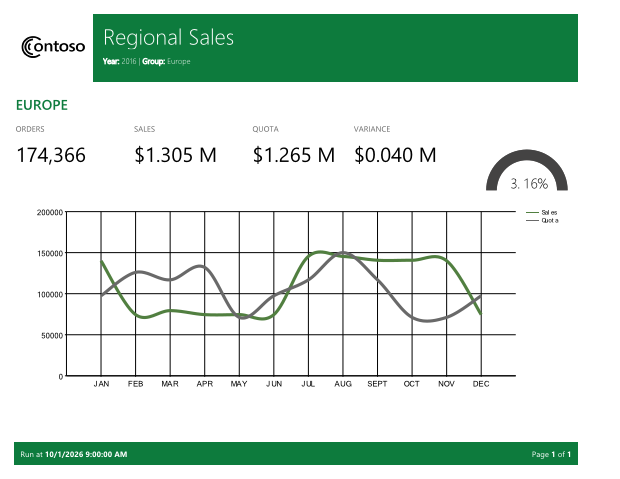
Run a SQL Server Reporting Services report without a report server. Load Microsoft's Regional Sales sample .rdl, give it data, run and paginate it, and render it to PDF, then export the same pages to Excel and CSV. The chart, gauge, embedded image and page footer are all drawn by DocWright.
You will learn to:
- read an
.rdlreport definition - supply report data through your own
ReportDataProvider - discover a report's parameters and their valid values
- supply the report's custom code safely with a
ReportCodeHost - paginate a report and render or export the pages
Before you start
dotnet add package DocWright
dotnet add package DocWright.Reporting
dotnet add package DocWright.Reporting.Rdl
dotnet add package DocWright.Reporting.Export
Note
DocWright never runs a report's query. A report names data sources and SQL, but DocWright doesn't connect to databases. You supply rows for each dataset through a ReportDataProvider. Your application stays in control of connections, credentials and what queries are allowed.
Step 1: Supply the data
Microsoft's sample reports carry their rows inside the definition, as <XmlData> in each dataset's query. That makes this tutorial self-contained, and a good example of a custom provider. In your own application, ExecuteQuery would run the query against your database, call an API, or return rows you already hold.
using System.Globalization;
using System.Xml.Linq;
using DocWright.Reporting;
using DocWright.Reporting.Data;
/// <summary>
/// Supplies each dataset from the rows embedded in its own query as <XmlData>, the way
/// Microsoft's sample reports carry their data. A real application would query a database here.
/// </summary>
public sealed class EmbeddedXmlDataProvider(ReportDefinition definition) : ReportDataProvider
{
public override ReportDataReader? ExecuteQuery(
ReportDataQuery query, CancellationToken cancellationToken)
{
RdlElement? dataSet = definition.DataSets
.FirstOrDefault(d => d.AttributeValue("Name") == query.DataSetName);
if (dataSet is null || query.CommandText is null)
{
return null; // no data for this dataset: it is reported and processed as empty
}
XElement? rows = XElement.Parse(query.CommandText)
.Descendants()
.FirstOrDefault(e => e.Name.LocalName == "Data");
if (rows is null)
{
return null;
}
// One column per <Field> that reads a <DataField>, typed by the designer's rd:TypeName.
// Calculated fields (those with a <Value>) are the engine's job, not the provider's.
var columns = (dataSet.Element("Fields")?.Elements("Field") ?? [])
.Where(f => f.Element("Value") is null)
.Select(f => (
Name: f.ElementValue("DataField") ?? f.AttributeValue("Name")!,
Type: TypeOf(f)))
.DistinctBy(c => c.Name)
.ToList();
var table = new ReportDataTable();
foreach (var (name, type) in columns)
{
table.AddColumn(name, type);
}
foreach (XElement row in rows.Elements())
{
table.AddRow(columns
.Select(c => Parse(Cell(row, c.Name), c.Type))
.ToArray());
}
return table.CreateReader();
}
// The designer records each field's .NET type as <rd:TypeName>.
private static Type TypeOf(RdlElement field) =>
Type.GetType(field.Children.FirstOrDefault(c => c.Name.LocalName == "TypeName")?.Value ?? "")
?? typeof(string);
private static string? Cell(XElement row, string column) =>
row.Elements().FirstOrDefault(e => e.Name.LocalName == column)?.Value;
// XmlData carries text; convert it to the column's type so sums, formats and parameters work.
private static object? Parse(string? text, Type type) =>
string.IsNullOrEmpty(text) ? null
: type == typeof(DateTime)
? DateTime.Parse(text, CultureInfo.InvariantCulture, DateTimeStyles.RoundtripKind)
: Convert.ChangeType(text, type, CultureInfo.InvariantCulture);
}
For data you already have in memory, ReportInMemoryDataProvider with ReportDataTable or ReportObjectData<T> needs no subclass at all. The API reference covers both.
Step 2: Supply the custom code
The report formats its sales figures with a Visual Basic function in its <Code> block, Code.AbbreviateCurrency. DocWright does not run embedded code. Executing it would mean executing whatever an uploaded file contains. The host supplies the functions it trusts instead:
using System.Globalization;
using DocWright.Reporting.Expressions;
/// <summary>
/// The report's <Code> block, rewritten in C#. DocWright never executes a report's embedded
/// Visual Basic: the host decides which functions exist and what they do.
/// </summary>
public sealed class RegionalSalesCode : ReportCodeHost
{
public override bool TryInvoke(
string memberName, IReadOnlyList<object?> arguments, out object? result)
{
if (memberName == "AbbreviateCurrency")
{
// VB: Iif(v < 0, "-", "") & "$" & (Abs(v) / 1000000).ToString("N3") & " M"
double value = Convert.ToDouble(arguments[0], CultureInfo.InvariantCulture);
string millions = (Math.Abs(value) / 1_000_000).ToString("N3", CultureInfo.InvariantCulture);
result = (value < 0 ? "-" : "") + "$" + millions + " M";
return true;
}
result = null;
return false; // unknown member: reported as DXP9106, and the textbox shows #Error
}
}
Without a code host, every textbox that calls Code.… shows #Error and a DXP9106 diagnostic is reported. The rest of the report still renders.
Step 3: Load the report and read its parameters
using System.Globalization;
using System.Xml.Linq;
using DocWright.Core.Diagnostics;
using DocWright.Core.Rendering;
using DocWright.Fonts;
using DocWright.Renderers.Pdf;
using DocWright.Reporting;
using DocWright.Reporting.Data;
using DocWright.Reporting.Export;
using DocWright.Reporting.Expressions;
using DocWright.Reporting.Pagination;
using DocWright.Reporting.Processing;
using DocWright.Reporting.Rdl;

// 1. Read the report definition.
ReportDefinition definition;
using (FileStream file = File.OpenRead("RegionalSales.rdl"))
{
    definition = new RdlReader().Read(file);
}

var provider = new EmbeddedXmlDataProvider(definition);

// 2. Ask which parameters the report needs, as a viewer's parameter bar would.
var run = new ReportRunOptions
{
    ExecutionTime = new DateTime(2026, 10, 1, 9, 0, 0),  // what Now() returns
    CodeHost = new RegionalSalesCode(),                    // runs Code.AbbreviateCurrency
};
foreach (ReportParameterPrompt prompt in ReportProcessor.GetParameters(definition, provider, run))
{
    string values = string.Join(", ", prompt.Values);
    Console.WriteLine($"{prompt.Name,-20} {prompt.State,-18} value = {values}");
}
GetParameters runs no report. It reads only the datasets the parameters need, and returns what a parameter bar shows: prompts, current values, valid values and a State. Here both parameters have valid defaults, so the report can run. To choose other values:
run.Parameters["SalesTerritoryGroup"] = new ReportParameterValue("North America");
Step 4: Run, paginate and render
using DocWright.Core.Diagnostics;
using DocWright.Core.Rendering;
using DocWright.Fonts;
using DocWright.Renderers.Pdf;
using DocWright.Reporting.Pagination;
using DocWright.Reporting.Processing;

// 3. Run it against the data, then divide it into pages.
var fonts = new FontEngine();   // reads the installed fonts: build one and keep it
using ReportInstance instance = ReportProcessor.Process(definition, provider, run);
ReportPageModel pages = ReportPaginator.Paginate(instance, fonts);
Console.WriteLine($"{pages.Pages.Count} page(s)");

// 4. Render to PDF with the same renderer that draws Word documents.
var diagnostics = new CollectingConversionDiagnostics();
using (FileStream pdf = File.Create("regional-sales.pdf"))
{
    new PdfLayoutRenderer(fonts)
        .Render(pages.ToLayoutDocument(), pdf, new RenderOptions(), diagnostics);
}
Output (steps 3 and 4)
CalendarYear         HasValidValue      value = 2016
SalesTerritoryGroup  HasValidValue      value = Europe
1 page(s)
Step 5: Export
The paginated pages export to Word, Excel, CSV and plain text. Every export reads the same page model, so they cannot paginate differently from the PDF.
using DocWright.Reporting.Export;

// 5. Export the same pages to Word, Excel and CSV.
using (FileStream docx = File.Create("regional-sales.docx"))
{
    ReportDocxExporter.Export(pages, fonts, docx);
}

using (FileStream xlsx = File.Create("regional-sales.xlsx"))
{
    ReportXlsxExporter.Export(pages, fonts, xlsx);
}

File.WriteAllText("regional-sales.csv", ReportCsvExporter.ToCsv(pages));
Downloads: regional-sales.xlsx · regional-sales.csv
| Export | What you get |
|---|---|
Excel (ReportXlsxExporter) |
Numbers as numeric cells with the report's format translated into Excel's, so columns can be summed. One sheet for the whole report by default, or ReportXlsxSheets.PerPage. Charts and gauges become pictures. |
Word (ReportDocxExporter) |
By default a fixed layout: one section per report page, with items placed on a grid. ReportDocxLayout.Flow writes flowing paragraphs instead, for editing. |
CSV (ReportCsvExporter) |
The data, not the page: each table becomes records. A row split across pages is written once. |
Text (ReportTextExporter) |
The report as plain text. |
| PDF / PNG | PdfLayoutRenderer or ImageLayoutRenderer over pages.ToLayoutDocument(), as above. |
What else the reporting packages do
- Edit and save report definitions.
RdlDefinitionWriterwrites a definition back losslessly, across the 2005–2016 schemas. Anything DocWright does not model is preserved. - Show reports in a browser.
DocWright.Reporting.Viewerrenders pages as HTML with inline SVG, with a region map for hit-testing, links, search, toggles and interactive sort. - Limits. Report processing carries its own limits (rows per dataset, group instances, expression steps and allocation), all on by default, because a report and its data are untrusted input.
Sample attribution
The Regional Sales report is from Microsoft's Reporting Services samples, used unmodified under the MIT licence. Copyright (c) 2016 Microsoft. Its data is fictitious. See the third-party notices.
Next steps
- Run a report, Paginate and render and Export: each step in depth.
- Guides › Reporting: editing definitions, expressions, and showing reports in a browser.
- Build a document-conversion web API to serve reports over HTTP.