Paginate and render a report
ReportPaginator.Paginate divides a ReportInstance into pages. Every item is positioned, every textbox's text is laid out into lines, and page headers and footers get their page numbers. The resulting ReportPageModel is what a viewer displays, and it renders to PDF and PNG through the same renderers that draw Word documents.
This guide continues from Run a report against your data and uses the same sales.rdl.
Pages and what is on them
using DocWright.Fonts;
using DocWright.Reporting.Pagination;
using DocWright.Reporting.Processing;

var fonts = new FontEngine();   // reads every installed font: build one and share it
using ReportInstance instance = ReportProcessor.Process(definition, SalesData.Provider(), run);

ReportPageModel pages = ReportPaginator.Paginate(instance, fonts);
ReportPage first = pages.Pages[0];
Console.WriteLine($"{pages.Pages.Count} pages of {first.Width.Value / 1440.0}in x {first.Height.Value / 1440.0}in");
foreach (ReportPage page in pages.Pages)
{
    string header = string.Concat(page.Items
        .Where(i => i.Section == ReportPageSection.PageHeader)
        .OfType<ReportPageTextbox>().Select(t => t.Value));
    int rows = Flatten(page.Items).OfType<ReportPageTextbox>().Count(t => t.Name == "City");
    Console.WriteLine($"  page {page.OverallPageNumber}: header \"{header}\", {rows} store rows");
}

// Every item is positioned in twips from the page's top-left corner.
ReportPageTextbox title = first.Items.OfType<ReportPageTextbox>().First(t => t.Name == "Title");
Console.WriteLine($"title \"{title.Value}\" at {title.Left.Value},{title.Top.Value} twips, "
                + $"{title.Width.Value}x{title.Height.Value}, {title.Lines.Count} line(s)");
Output (all output from this page's samples):
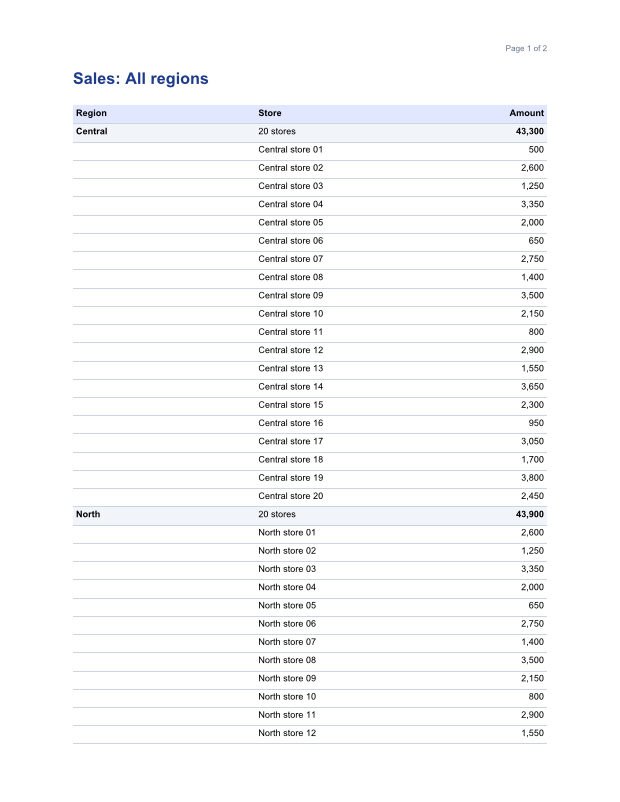
2 pages of 8.5in x 11in
  page 1: header "Page 1 of 2", 32 store rows
  page 2: header "Page 2 of 2", 28 store rows
title "Sales: All regions" at 1440,1368 twips, 9360x504, 1 line(s)
document map:
  Sales by region: page 1
  Central: page 1
  North: page 1
  South: page 2
bookmark 'top' on page 1
toggle Central: key 'RegionBox@Detail:1.0x0', expanded True
toggle North: key 'RegionBox@Detail:1.1x0', expanded True
toggle South: key 'RegionBox@Detail:1.2x0', expanded True
North collapsed: 2 page(s), 40 store rows (was 60)
interactive: 6 pages of 4in
pdf: True, png: True
MaxReportPages: Pagination produced more than 1 pages.
- A page's
ItemsareReportPageTextbox,ReportPageTablix,ReportPageRectangle,ReportPageLine,ReportPageImage, charts, gauges and subreports. Each hasLeft,Top,WidthandHeightin twips from the page's top-left corner (1,440 twips = 1 inch), aStyle(borders and background), andChildren, such as a table's cells. - Each item has a
Section:Body,PageHeaderorPageFooter. - A textbox carries its displayed
Value, theRawValuebefore formatting, itsFormatCode, and its laid-outLinesof positioned runs, which is what search and text selection need. - An item that continues onto the next page appears on both pages with the same
Id. Paginatealways needs aFontEngine, because text is measured. Building one reads every installed font and takes about a second, so create one and share it. It is safe to share between threads.
Navigation: the document map and bookmarks
using DocWright.Reporting.Pagination;

static void Map(IReadOnlyList<ReportDocumentMapNode> nodes, string indent)
{
    foreach (ReportDocumentMapNode node in nodes)
    {
        Console.WriteLine($"{indent}{node.Label}: page {node.PageNumber}");
        Map(node.Children, indent + "  ");
    }
}

Console.WriteLine("document map:");
Map(pages.DocumentMap, "  ");
foreach (ReportBookmark bookmark in pages.Bookmarks)
{
    Console.WriteLine($"bookmark '{bookmark.Name}' on page {bookmark.PageNumber}");
}
Items and groups with a DocumentMapLabel become DocumentMap nodes, nested as the report nests them, each with the page it's on. Items with a Bookmark are listed in Bookmarks. Every item and text run also carries its ToolTip and Actions: a hyperlink, a link to a bookmark, or a drill-through to another report with its parameters. Your application decides what to do with a drill-through.
When the model is rendered to PDF, hyperlinks and bookmark links become clickable links, bookmarks become link targets, and the document map becomes the PDF's outline.
Drill-down toggles
using DocWright.Reporting.Pagination;

// A textbox that shows or hides other rows carries a Toggle with a stable key.
foreach (ReportPageTextbox toggle in pages.Pages.SelectMany(p => Flatten(p.Items))
             .OfType<ReportPageTextbox>().Where(t => t.Toggle is not null).DistinctBy(t => t.Toggle!.Key))
{
    Console.WriteLine($"toggle {toggle.Value}: key '{toggle.Toggle!.Key}', expanded {toggle.Toggle.IsExpanded}");
}

// Collapse one region by sending its key back. No re-processing: paginate the same instance.
string northKey = pages.Pages.SelectMany(p => Flatten(p.Items)).OfType<ReportPageTextbox>()
    .First(t => t.Toggle is not null && t.Value == "North").Toggle!.Key;
var collapsed = new ReportPaginationOptions();
collapsed.ToggledItems.Add(northKey);
ReportPageModel after = ReportPaginator.Paginate(instance, fonts, collapsed);
int storeRows = after.Pages.SelectMany(p => Flatten(p.Items)).OfType<ReportPageTextbox>().Count(t => t.Name == "City");
Console.WriteLine($"North collapsed: {after.Pages.Count} page(s), {storeRows} store rows (was 60)");
A textbox that other rows or items name in their ToggleItem has a Toggle. When the user clicks it, add its Key to ReportPaginationOptions.ToggledItems and paginate the same instance again. There's no need to process the report again, and the same set of keys always gives the same pages. A web server keeps that set between requests.
- The key identifies the textbox and the group instance it's in. A toggle repeated for each region has one key per region, and the same key refers to the same row next time.
IsExpandedis the state of the plus/minus icon. It comes from the textbox'sToggleImage/InitialState, and it flips while the key is inToggledItems. It doesn't depend on whether the rows start hidden, so setInitialStateto match. That's whatsales.rdldoes.
Print pages or screen pages
using DocWright.Reporting.Pagination;

// Soft pages for a screen: the definition's InteractiveHeight, no margins, never cut across.
ReportPageModel soft = ReportPaginator.Paginate(instance, fonts,
    new ReportPaginationOptions { Mode = ReportPaginationMode.Interactive });
Console.WriteLine($"interactive: {soft.Pages.Count} pages of {soft.Pages[0].Height.Value / 1440.0}in");
ReportPaginationMode |
Page size | Use it for |
|---|---|---|
Physical (default) |
The definition's PageHeight and PageWidth, with its margins and columns |
PDF, printing, images |
Interactive |
The definition's InteractiveHeight and InteractiveWidth, with no margins and one column. A page is widened to fit its widest item instead of being cut. An InteractiveHeight of 0 makes the whole report one page. |
A viewer on screen |
Keeping things together, page breaks, repeated headers and page numbers follow the same rules in both modes.
Render to PDF and PNG
using DocWright.Core.Diagnostics;
using DocWright.Core.Rendering;
using DocWright.Renderers.Imaging;
using DocWright.Renderers.Pdf;

// The page model lowers to the same LayoutDocument that Word documents render from.
LayoutDocument layout = pages.ToLayoutDocument();
var diagnostics = new CollectingConversionDiagnostics();
using (FileStream pdf = File.Create("sales.pdf"))
{
    new PdfLayoutRenderer(fonts).Render(layout, pdf, new RenderOptions(), diagnostics);
}

// And to PNG, one image per page.
var images = new ImageRenderOptions
{
    Width = 800,
    PageEncoded = (page, png) => File.WriteAllBytes($"sales-page-{page}.png", png),
};
new ImageLayoutRenderer(fonts, images).Render(layout, Stream.Null, new RenderOptions(), diagnostics);
Console.WriteLine($"pdf: {new FileInfo("sales.pdf").Length > 0}, png: {File.Exists("sales-page-1.png")}");
ToLayoutDocument() converts the page model into the same LayoutDocument that Word documents are drawn from, so PdfLayoutRenderer and ImageLayoutRenderer are used unchanged. Tagged PDF and PDF/A work the same way as for Word documents. See Page images for ImageRenderOptions and PDF/A and tagged PDF.
Diagnostics and the page limit
using DocWright.Core;
using DocWright.Reporting.Pagination;
using DocWright.Reporting.Processing;

foreach (var diagnostic in pages.Diagnostics)
{
    Console.WriteLine($"{diagnostic.Code} {diagnostic.Severity}: {diagnostic.Message}");
}

var bounded = new ReportRunOptions { ExecutionTime = run.ExecutionTime };
bounded.Parameters["Region"] = new ReportParameterValue("*");
bounded.Limits.MaxReportPages = 1;
using ReportInstance small = ReportProcessor.Process(definition, SalesData.Provider(), bounded);
try
{
    ReportPaginator.Paginate(small, fonts);
}
catch (ResourceLimitExceededException error)
{
    Console.WriteLine($"{error.LimitName}: {error.Message}");
}
Pagination reports what it couldn't do in ReportPageModel.Diagnostics, or as it happens through ReportPaginationOptions.Diagnostics:
| Code | Meaning |
|---|---|
DXP9301 |
A map item isn't drawn. It keeps its position and size. |
DXP9303 |
A style value couldn't be read, so its default is used. |
DXP9304 |
A page has no room for its body. |
MaxReportPages (100,000 by default, in ReportRunOptions.Limits) is checked before each page is built. Cancellation is checked between items and pages. Pagination is stateless and safe to run on several threads over one ReportInstance.
Next steps
- Export a report to Word, Excel, CSV or text, from the same page model.
- Show reports in a browser with HTML, SVG and a clickable region map.