Tutorial: Fill and update several tables
A real template usually has more than one table. This tutorial fills two repeating tables from one JSON file, each one picked out by name ({{#table1}}, {{#table2}}). It then fills only the table you ask for, and finally reopens the finished report to update specific tables whose markers are long gone.
You will learn to:
- mark each repeating table with a name, and find all of them in one walk
- fill every table the data supplies, and leave the others exactly as they stand
- fill one named table only, such as
table2and nottable1 - find a table in a finished document by its header row, by a bookmark, or by position
- add a row to a table and change the text of a specific cell
This tutorial builds on Fill a {{placeholder}} template from JSON, which explains the single-table case and the PlaceholderOptions settings.
Step 1: The template and the data
The template has three tables. The first two have one template row each, and a {{#name}} marker in that row names the table. The third is a fixed status table with no markers. The author gave it a bookmark called StatusTable (in Word: select the table, then Insert › Bookmark). Download: visit-template.docx.
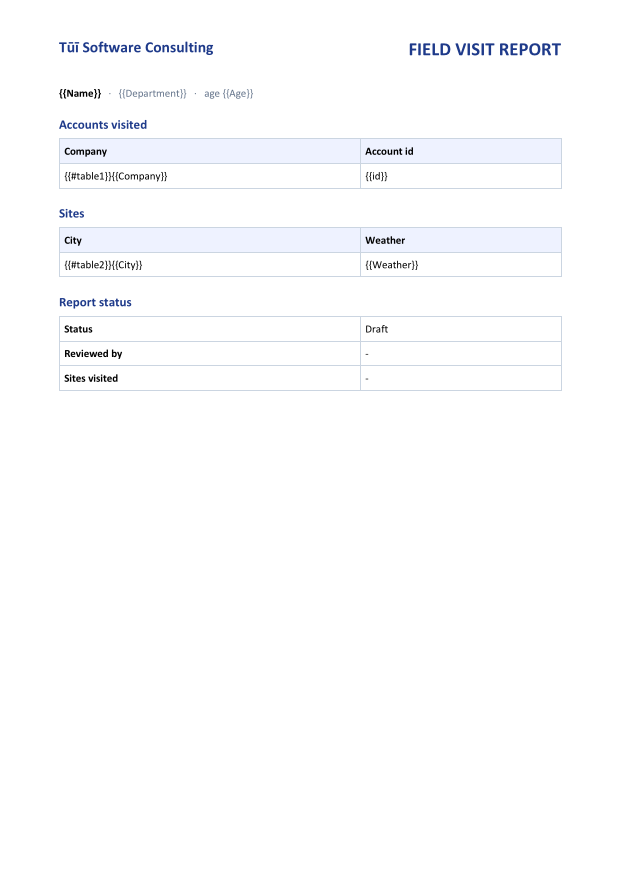
{{#table1}} and {{#table2}} can go in any cell of the template row. They are removed when the table is filled.The data, visit.json, has top-level values and a Tables collection keyed by the same names:
{
  "Name": "John",
  "Age": 30,
  "Department": "IT",
  "Tables": [
    { "table1": [ { "Company": "Microsoft", "id": 1 },
                  { "Company": "Oracle",    "id": 2 } ] },
    { "table2": [ { "City": "Auckland",       "Weather": "Nice" },
                  { "City": "Palmerston North", "Weather": "Good" } ] }
  ]
}
Tables is an array of single-key objects, which is what a serializer emits when the names come from a list. The code below also accepts the plain object form, {"table1": [...], "table2": [...]}.
Step 2: Read the JSON
DocWright has no JSON parser of its own, so use System.Text.Json. Each table becomes a list of dictionaries, one per row:
using System.Text.Json;
using DocWright;
using DocWright.Dom;
using DocWright.Dom.Editing;

// Scalars and table collections from the JSON. "Tables" may be an object
// ({"table1": [...], "table2": [...]}) or an array of single-key objects, as here.
using JsonDocument json = JsonDocument.Parse(File.ReadAllText("visit.json"));

static Dictionary<string, object?> Values(JsonElement obj) =>
    obj.EnumerateObject()
       .Where(p => p.Value.ValueKind is not (JsonValueKind.Array or JsonValueKind.Object))
       .ToDictionary(p => p.Name, p => (object?)p.Value.ToString());

Dictionary<string, object?> scalars = Values(json.RootElement);

var tables = new Dictionary<string, List<Dictionary<string, object?>>>(StringComparer.OrdinalIgnoreCase);
JsonElement tablesJson = json.RootElement.GetProperty("Tables");
IEnumerable<JsonProperty> collections = tablesJson.ValueKind == JsonValueKind.Array
    ? tablesJson.EnumerateArray().SelectMany(o => o.EnumerateObject())
    : tablesJson.EnumerateObject();
foreach (JsonProperty collection in collections)
{
    tables[collection.Name] = collection.Value.EnumerateArray().Select(Values).ToList();
}
Step 3: Find every table
One DomVisitor collects two things. All is every table the walk reaches. Named is every table with a {{#name}} row, together with that row:
using System.Text.Json;
using DocWright;
using DocWright.Dom;
using DocWright.Dom.Editing;

/// <summary>A table, the template row that names it, and the name: "table1" for {{#table1}}.</summary>
internal sealed record NamedTable(string Name, Table Table, TableRow TemplateRow);

/// <summary>
/// Collects every table the walk reaches (headers, footers and nested tables included) and every
/// table that declares a {{#name}} row.
/// </summary>
internal sealed class TableFinder : DomVisitor
{
    private Table? current;

    public List<Table> All { get; } = [];

    public List<NamedTable> Named { get; } = [];

    public override void VisitTable(Table table)
    {
        All.Add(table);

        // Track the innermost table, so a nested table's row is never credited to its parent.
        Table? outer = this.current;
        this.current = table;
        base.VisitTable(table);
        this.current = outer;
    }

    public override void VisitTableRow(TableRow row)
    {
        // {{#table1}} -> "table1". The group is the text between "{{#" and "}}".
        IReadOnlyList<TextMatch> marker = row.FindRegex(@"\{\{#\s*([^{}]+?)\s*\}\}");
        if (marker.Count > 0 && this.current is not null)
        {
            Named.Add(new NamedTable(marker[0].Groups[0], this.current, row));
        }

        base.VisitTableRow(row);
    }
}
Note
document.Accept walks headers, footers, notes and text boxes as well as the body, so All includes tables you may not think of as tables. In this template the page header, with the company name on the left and the title on the right, is itself a two-cell table. Use a marker, a header row or a bookmark to find a table. Don't count through All.
Step 4: The table helpers
These helpers are used in the rest of the tutorial. None of them is DocWright API: they are short compositions of Rows, Cells, Clone, FindBookmark and Parent, and you can copy them as they are.
using System.Text.Json;
using DocWright;
using DocWright.Dom;
using DocWright.Dom.Editing;

internal static class TableEditing
{
    /// <summary>Repeats the template row once per record, then removes it. Returns rows added.</summary>
    public static int Fill(NamedTable target, IReadOnlyList<Dictionary<string, object?>> records)
    {
        // Strip the {{#name}} marker first, so no clone carries it.
        target.TemplateRow.ReplaceRegex(@"\{\{#[^{}]*\}\}", string.Empty);

        var options = new PlaceholderOptions { Unresolved = UnresolvedPlaceholderAction.Clear };
        DomNodeList<TableRow> rows = target.Table.Rows;
        int at = rows.IndexOf(target.TemplateRow);
        foreach (Dictionary<string, object?> record in records)
        {
            TableRow row = target.TemplateRow.Clone();
            rows.Insert(at++, row);
            row.ReplacePlaceholders(record, options);    // this row only, never the table
        }

        rows.Remove(target.TemplateRow);
        return records.Count;
    }

    /// <summary>Replaces a cell's text, keeping the formatting of its first run.</summary>
    public static void SetText(TableCell cell, string text)
    {
        List<TextRun> runs = Descendants<TextRun>(cell).ToList();
        if (runs.Count == 0)
        {
            cell.AppendParagraph(text);
            return;
        }

        runs[0].Text = text;
        foreach (TextRun extra in runs.Skip(1))
        {
            extra.Remove();
        }
    }

    /// <summary>Adds a row formatted like the table's last row, with the given cell texts.</summary>
    public static TableRow AppendRow(Table table, params string[] texts)
    {
        TableRow row = table.Rows[^1].Clone();
        for (int i = 0; i < row.Cells.Count; i++)
        {
            SetText(row.Cells[i], i < texts.Length ? texts[i] : string.Empty);
        }

        table.Rows.Add(row);
        return row;
    }

    /// <summary>The table whose header row reads exactly these column titles.</summary>
    public static Table? FindByHeader(WordDocument document, params string[] titles)
    {
        var finder = new TableFinder();
        document.Accept(finder);
        return finder.All.FirstOrDefault(t =>
            t.Rows.Count > 0
            && t.Rows[0].Cells.Select(c => c.GetText().Trim()).SequenceEqual(titles, StringComparer.OrdinalIgnoreCase));
    }

    /// <summary>The top-level tables of the body, in reading order. Headers and nested tables are not included.</summary>
    public static List<Table> BodyTables(WordDocument document) =>
        document.Sections.SelectMany(s => s.Blocks.OfType<Table>()).ToList();

    /// <summary>The table that contains the named bookmark, or null.</summary>
    public static Table? FindByBookmark(WordDocument document, string bookmark)
    {
        DomNode? node = document.FindBookmark(bookmark)?.StartParagraph;
        while (node is not null and not Table)
        {
            node = node.Parent;
        }

        return node as Table;
    }

    private static IEnumerable<T> Descendants<T>(DomNode node) where T : DomNode
    {
        foreach (DomNode child in node.Children)
        {
            if (child is T match)
            {
                yield return match;
            }

            foreach (T nested in Descendants<T>(child))
            {
                yield return nested;
            }
        }
    }
}
| Helper | What it does |
|---|---|
Fill |
Strips the {{#name}} marker, clones the template row once per record, fills each clone at row scope, then removes the template row. |
SetText |
Puts new text in the cell's first run and removes the other runs, so the cell keeps its font, size and colour. |
AppendRow |
Clones the last row, keeping its borders, shading and widths, and sets each cell's text. |
FindByHeader |
Returns the table whose first row reads exactly the given column titles. |
FindByBookmark |
Starts at the bookmark's paragraph and walks up through Parent until it reaches a Table. |
BodyTables |
Returns the top-level tables of each section, in reading order. Header, footer and nested tables are left out. |
Step 5: Fill every table
using System.Text.Json;
using DocWright;
using DocWright.Dom;
using DocWright.Dom.Editing;

using (FileStream input = File.OpenRead("visit-template.docx"))
using (WordDocument document = converter.Load(input))
{
    // 1. Scalars everywhere. Leave, not Clear: Clear would also delete the {{#table1}}
    //    markers, and the tables could no longer be found.
    document.ReplacePlaceholders(scalars, new PlaceholderOptions { Unresolved = UnresolvedPlaceholderAction.Leave });

    // 2. Every {{#name}} table the data has rows for.
    var finder = new TableFinder();
    document.Accept(finder);
    foreach (NamedTable table in finder.Named)
    {
        if (tables.TryGetValue(table.Name, out List<Dictionary<string, object?>>? records))
        {
            int added = TableEditing.Fill(table, records);
            Console.WriteLine($"{table.Name}: {added} rows");
        }
        else
        {
            Console.WriteLine($"{table.Name}: no data, left as it stands");
        }
    }

    Console.WriteLine($"Unfilled: {document.FindPlaceholderNames().Count}");

    using FileStream pdf = File.Create("visit-report.pdf");
    converter.Convert(document, pdf);
    using FileStream docx = File.Create("visit-report.docx");
    converter.Save(document, docx);
}
Output (this includes the output of the next two steps):
table1: 2 rows
table2: 2 rows
Unfilled: 0
After filling table2 only, still unfilled: #table1, Age, Company, Department, id, Name
Sites: 3, status: Final
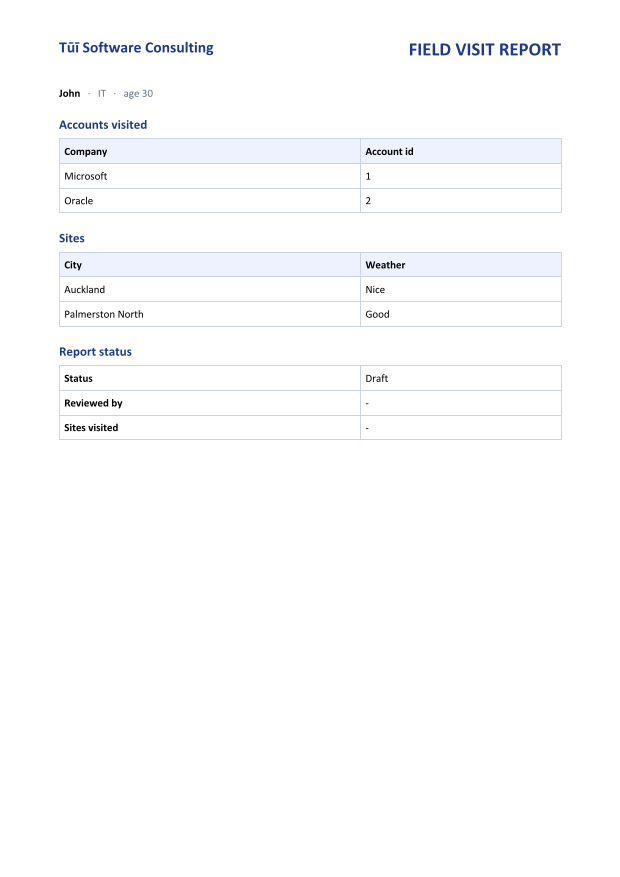
The order matters. Fill the scalars with Unresolved = Leave before finding the tables. Clear would treat {{#table1}} as an unknown placeholder and delete it, and no table would be found, with nothing to tell you why. Each table's own rows are filled with Clear inside Fill, because by then its marker has already been removed.
A table whose name the data doesn't mention keeps its template row untouched. A template often outlives one of its data collections, and blanking the table would lose the author's layout. If you'd rather fail, throw in the else branch.
Step 6: Fill only one table
To fill one table and not the others, choose it by name from finder.Named:
using System.Text.Json;
using DocWright;
using DocWright.Dom;
using DocWright.Dom.Editing;

// Fill only the table the caller names. Every other table keeps its template row.
static void FillOnly(WordDocument document, string name, List<Dictionary<string, object?>> records)
{
    var finder = new TableFinder();
    document.Accept(finder);
    NamedTable table = finder.Named.SingleOrDefault(t => t.Name.Equals(name, StringComparison.OrdinalIgnoreCase))
        ?? throw new InvalidOperationException($"The template has no {{{{#{name}}}}} table.");
    TableEditing.Fill(table, records);
}

using (FileStream input = File.OpenRead("visit-template.docx"))
using (WordDocument document = converter.Load(input))
{
    FillOnly(document, "table2", tables["table2"]);

    IReadOnlyList<string> left = document.FindPlaceholderNames();
    Console.WriteLine($"After filling table2 only, still unfilled: {string.Join(", ", left)}");
}
The output line still unfilled: #table1, Age, Company, … confirms it: table1 still has its template row and markers, and only table2 was filled. FindPlaceholderNames is a cheap check that you filled the table you meant to.
Two tables with the same {{#name}} make SingleOrDefault throw. That's intended, because it means the template is ambiguous. If you want both filled, loop over finder.Named.Where(t => t.Name == name) instead.
Step 7: Update specific tables in a finished document
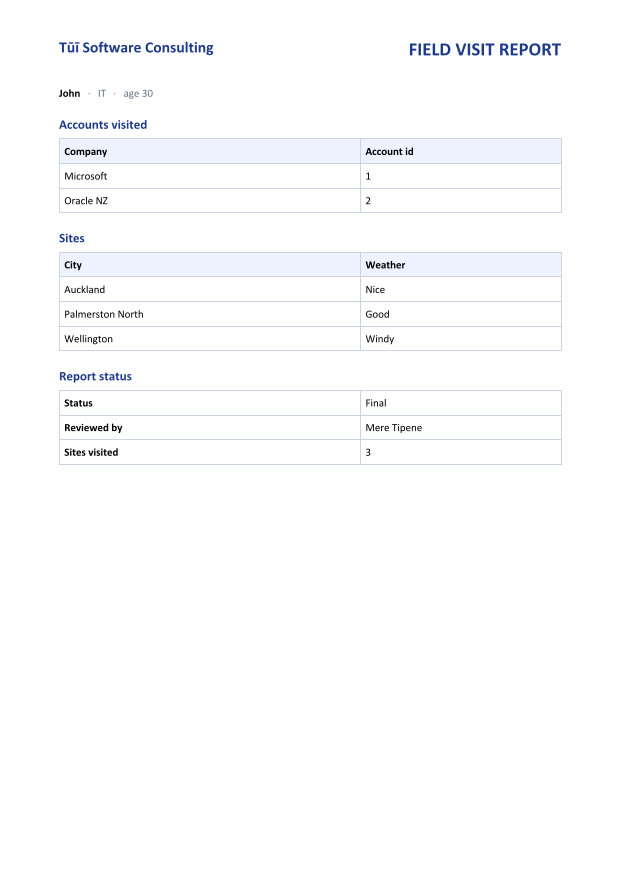
After the first fill, the {{#…}} markers are gone, so a later update has to find its tables another way. This step reopens visit-report.docx and finds each of three tables differently:
using System.Text.Json;
using DocWright;
using DocWright.Dom;
using DocWright.Dom.Editing;

// Later: update the finished report. The markers are gone, so find tables another way.
using (FileStream input = File.OpenRead("visit-report.docx"))
using (WordDocument document = converter.Load(input))
{
    // By its header row: add a site to the "City | Weather" table.
    Table sites = TableEditing.FindByHeader(document, "City", "Weather")
        ?? throw new InvalidOperationException("No City/Weather table.");
    TableEditing.AppendRow(sites, "Wellington", "Windy");

    // By a bookmark inside it: update cells of the status table.
    Table status = TableEditing.FindByBookmark(document, "StatusTable")
        ?? throw new InvalidOperationException("No StatusTable bookmark.");
    TableEditing.SetText(status.Rows[0].Cells[1], "Final");
    TableEditing.SetText(status.Rows[1].Cells[1], "Mere Tipene");
    TableEditing.SetText(status.Rows[2].Cells[1], (sites.Rows.Count - 1).ToString());

    // By position: the first table in the body. Works, but breaks as soon as someone adds
    // a table above it.
    Table accounts = TableEditing.BodyTables(document)[0];
    TableEditing.SetText(accounts.Rows[2].Cells[0], "Oracle NZ");

    Console.WriteLine($"Sites: {sites.Rows.Count - 1}, status: {status.Rows[0].Cells[1].GetText().Trim()}");

    using FileStream pdf = File.Create("visit-report-final.pdf");
    converter.Convert(document, pdf);
}
Which way to find a table?
| Find it by… | Survives edits to the template? | Use it when… |
|---|---|---|
A {{#name}} marker in a row |
Yes | You fill a template. The marker disappears once the table is filled. |
| A bookmark inside the table | Yes. Bookmarks round-trip through DocWright and Word. | You update a finished document again and again, and the author can add a bookmark. |
| Its header row text | Until someone renames a column | You can't change the document, but its column titles are stable. |
Its position, BodyTables(document)[n] |
No. Adding a table above it moves the index. | It's a one-off script against a document you control. |
Word also lets an author give a table a title and description (Table Properties › Alt Text). DocWright keeps these when it saves the document, but doesn't expose them as properties. Use a bookmark to label a table from code.
How it works
- Scope is the node you call it on.
row.ReplacePlaceholders(...)touches one row.document.ReplacePlaceholders(...)touches the body, headers, footers, notes and text boxes. Call the fill method on the clone, never on the table, or the template row gets emptied before the next clone is taken. - Clones carry the formatting.
TableRow.Clone()copies the cell widths, borders, shading, margins and any preserved markup. Table-style banding is worked out from row position when the document is rendered, so striped styles keep alternating across the new rows. - Edits are ordinary list operations.
RowsandCellsareDomNodeList<T>, soInsert,Add,Remove,RemoveAtandIndexOfwork as they do onIList<T>. To delete a row or a whole table, callrow.Remove()ortable.Remove(). - Nested tables are handled.
TableFindertracks the innermost table, so a{{#name}}row inside a table nested in a cell is credited to the nested table.
A ready-made command-line version
The DocWright source repository includes tools/DocWright.TemplateFill, a console tool built on the same approach. It fills every template in an input/ folder from its JSON and writes the PDFs to output/. It accepts both shapes of Tables, and with --strict it exits with code 3 when anything is left unfilled.
Next steps
- Generate invoices with mail merge when you need nested regions, conditions or Word merge fields.
- Read text to walk tables and cells and extract their contents.
- Bookmarks, merge and split for more about bookmarks.